Prefer to read? Everything in the video is covered below. Captions are in the player menu.
Whenever you want something in your Odoo changed, you ask in the chat on your project's page, in your own words. Functionary AI first checks whether Odoo can already do it. If it can, it adds the app or feature for you. If it can't, it plans a custom build with you, and builds it once you approve the plan.
1. Adding an app
Go to My Projects and click Chat next to your project. Type what you need in the box at the bottom, for example: "Can you add the Sales app, so we can do quotations and sales orders?", and click Send.
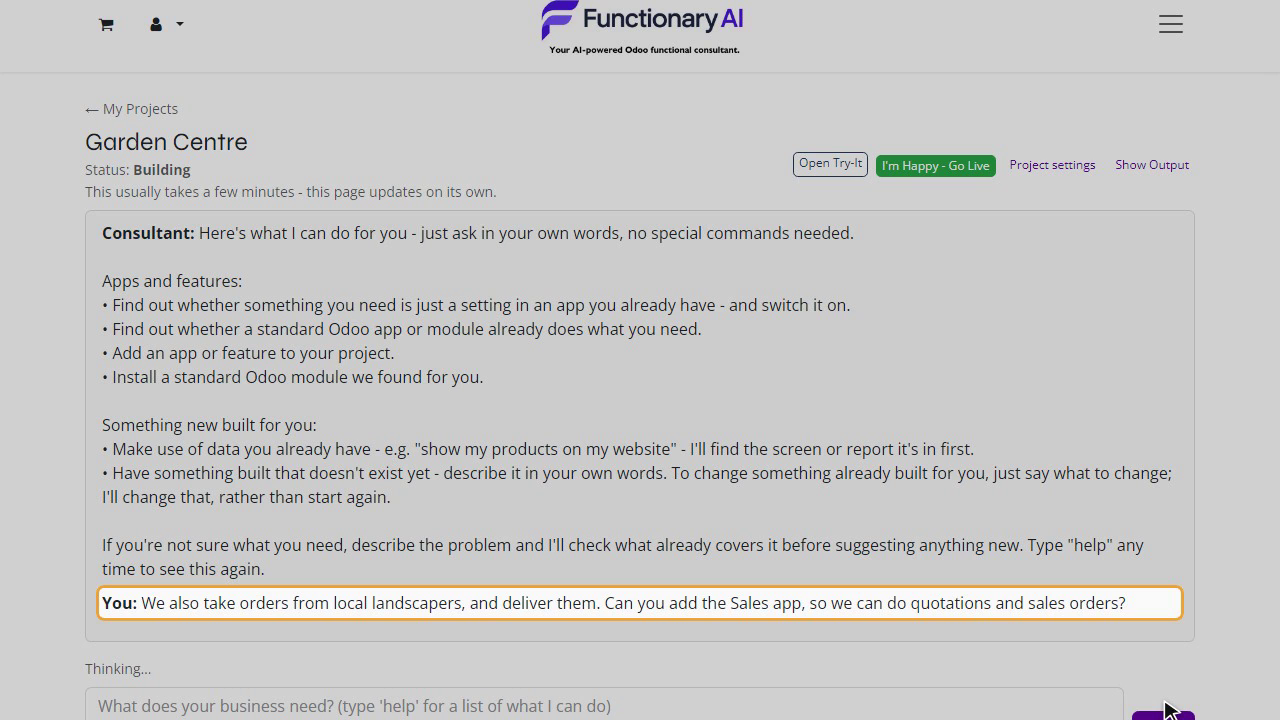
Functionary AI checks what's available, and offers to add it. Answer in the chat: "Yes please."
2. Allowing it
Before Functionary AI changes anything in your project, your browser asks you to allow it, with what it is about to do written out. Click OK to go ahead, or Cancel to stop.
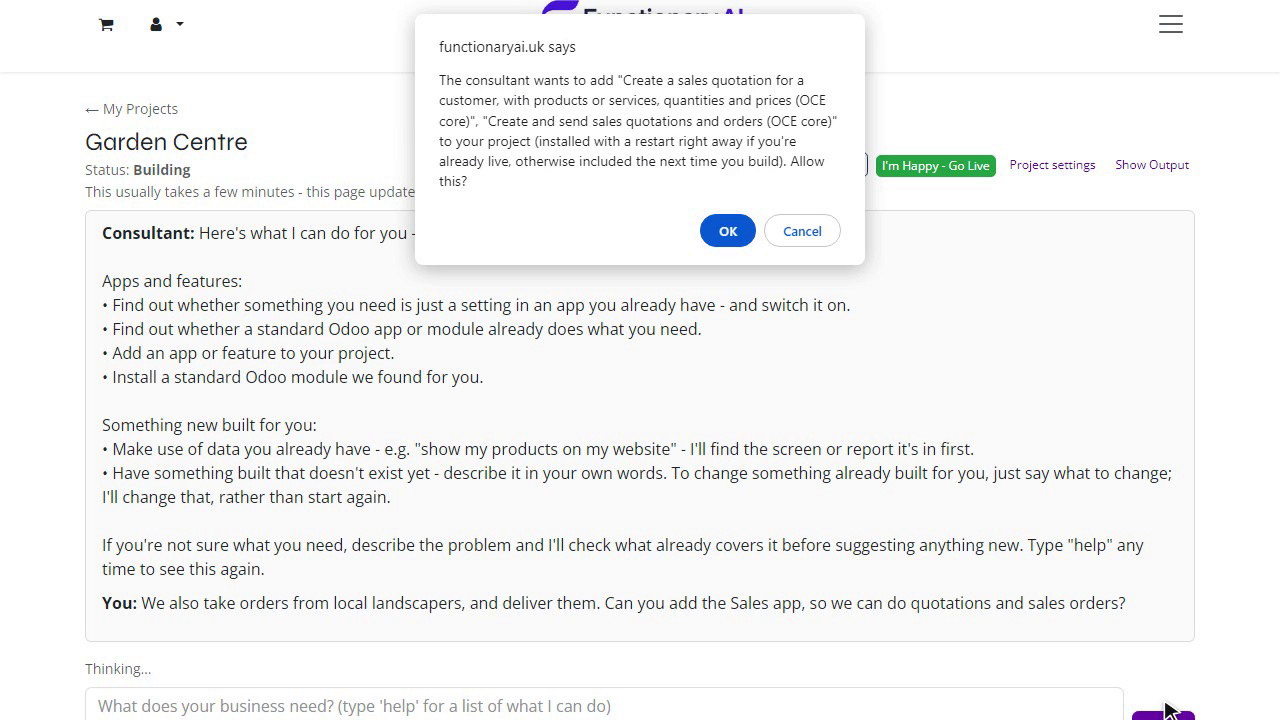
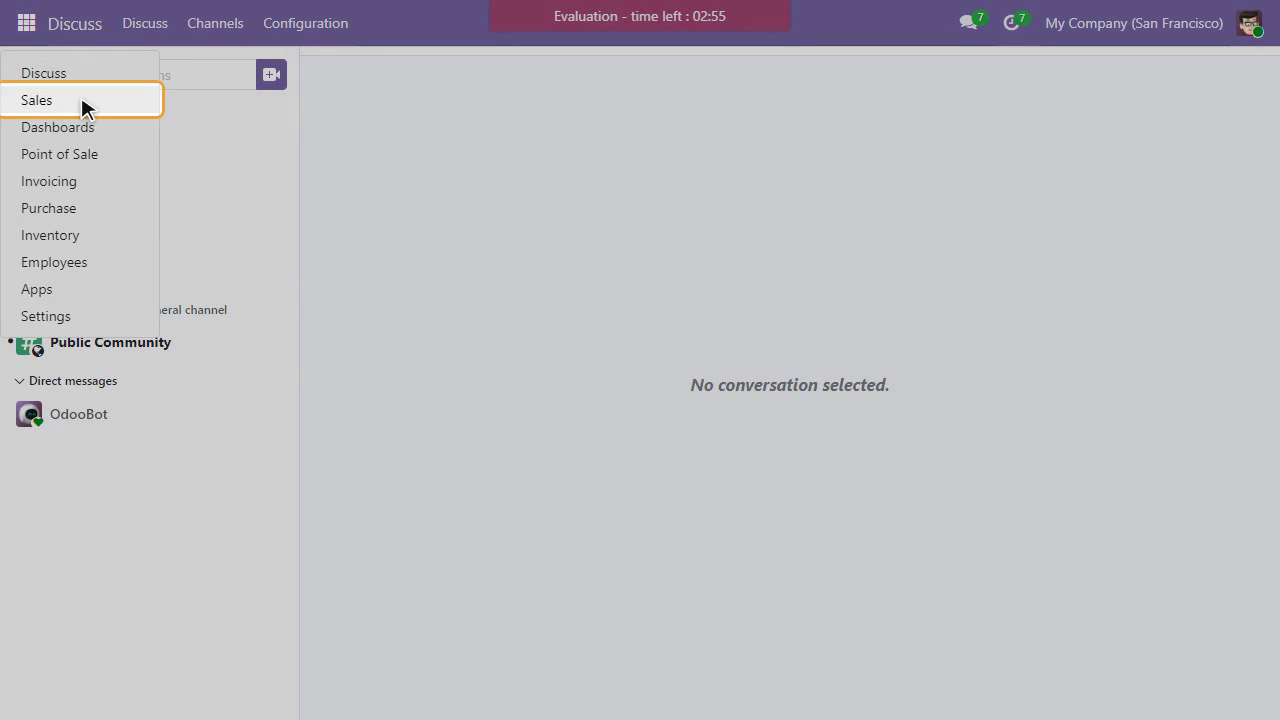
Adding an app restarts your project and starts a fresh Try-It with the app in it. This takes a few minutes; your project's page updates on its own, and shows Open Try-It again when it's done. Sign in to your Try-It, and the new app is in the apps menu.
3. Asking for something new
When Odoo doesn't do what you need, describe it the same way. Say what you want, where it goes, and when it should apply. The more you say, the closer the plan is to what you have in mind. For example:
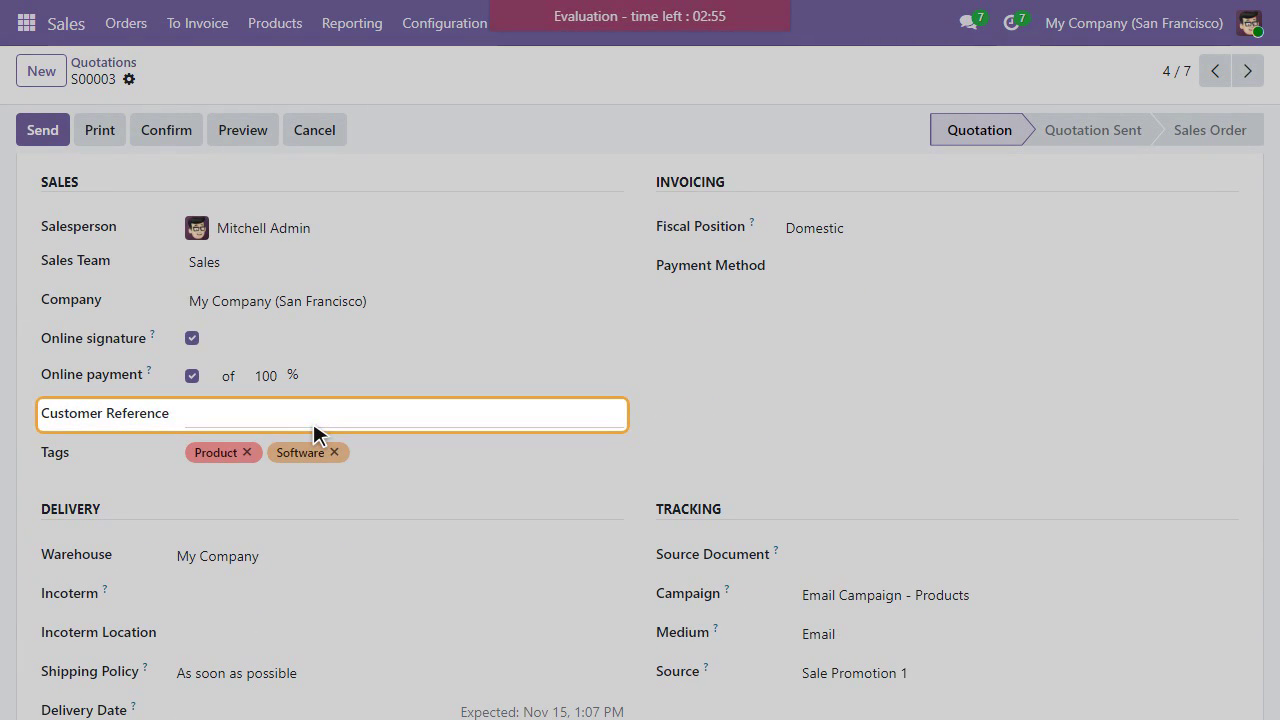
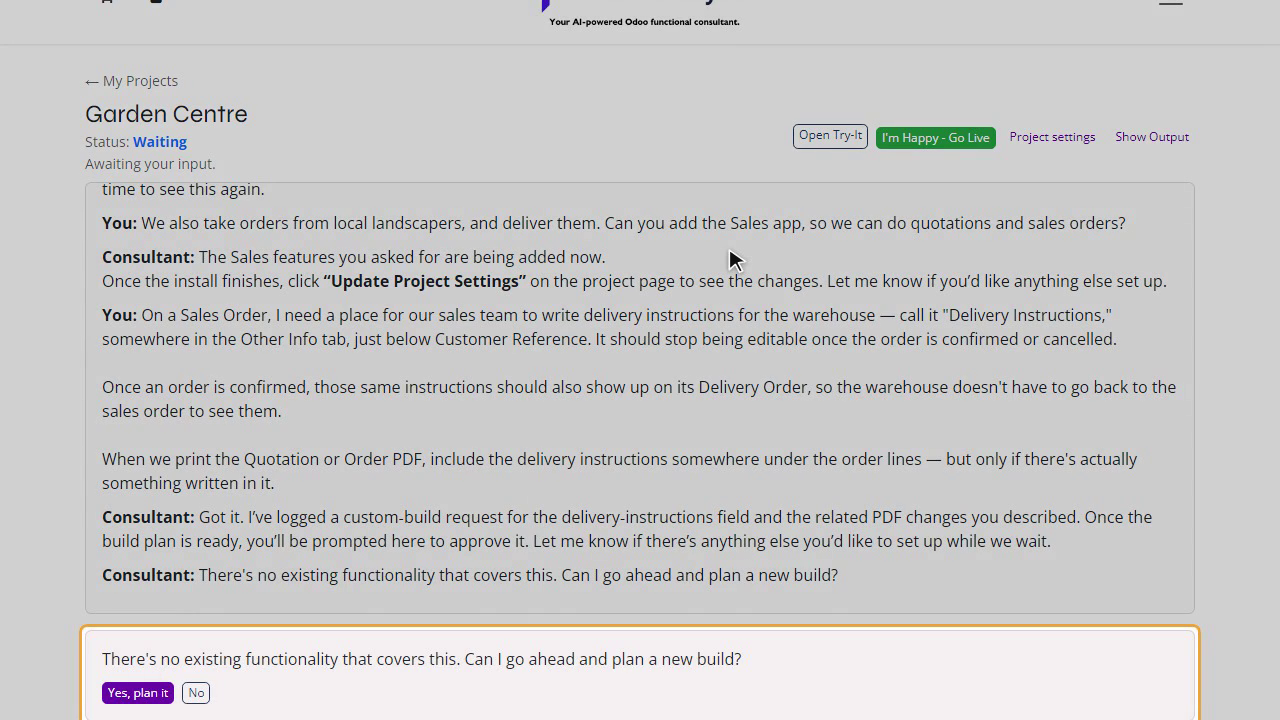
On a Sales Order, I need a place for our sales team to write delivery instructions for the warehouse - call it "Delivery Instructions," somewhere in the Other Info tab, just below Customer Reference. It should stop being editable once the order is confirmed or cancelled.
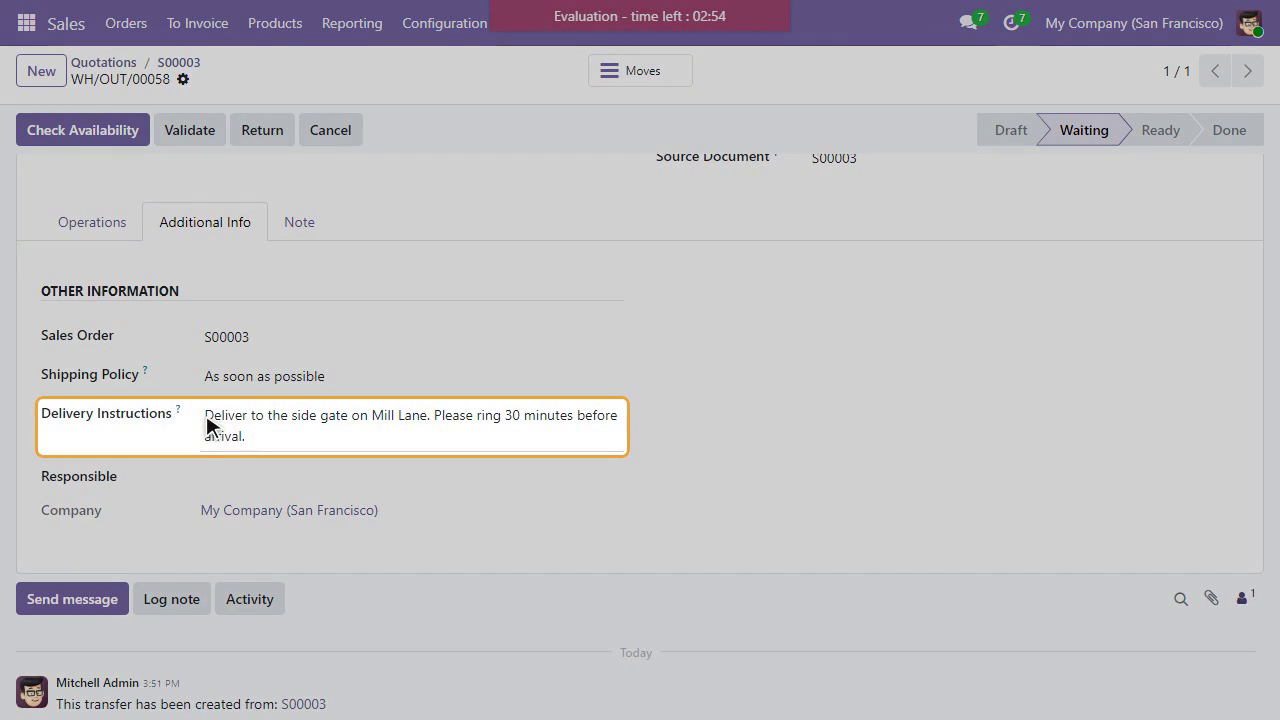
Once an order is confirmed, those same instructions should also show up on its Delivery Order, so the warehouse doesn't have to go back to the sales order to see them.
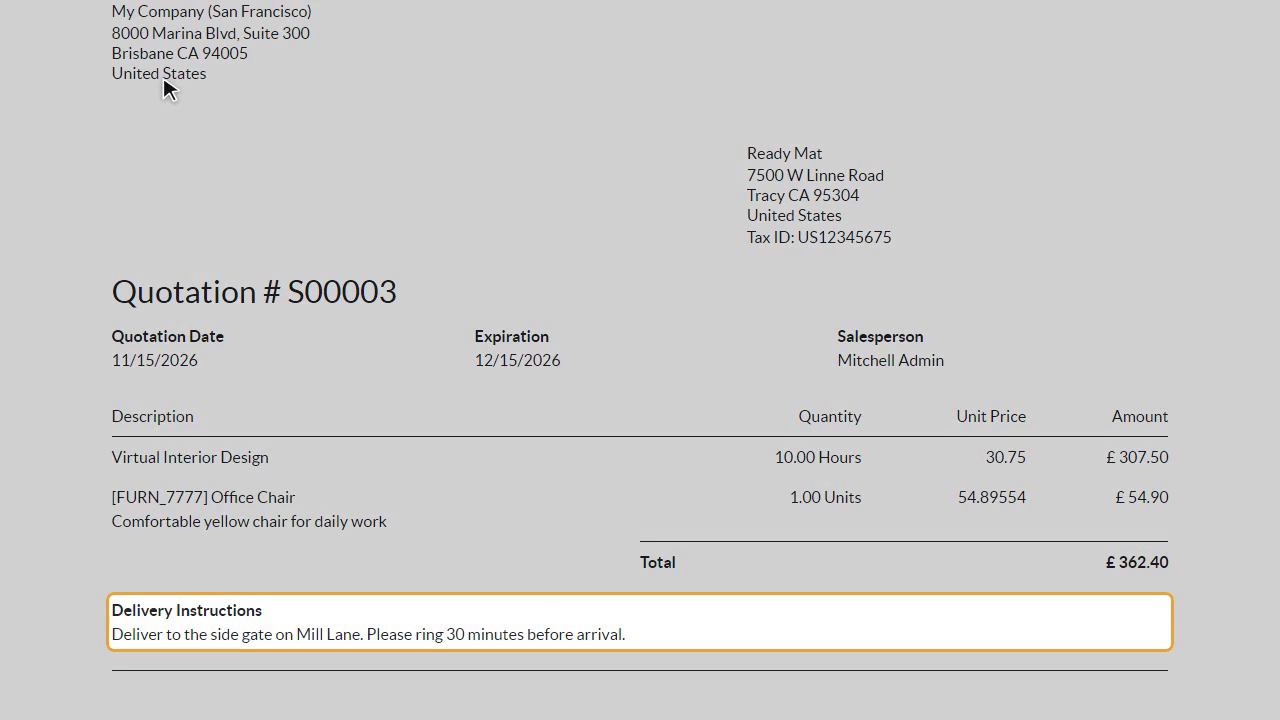
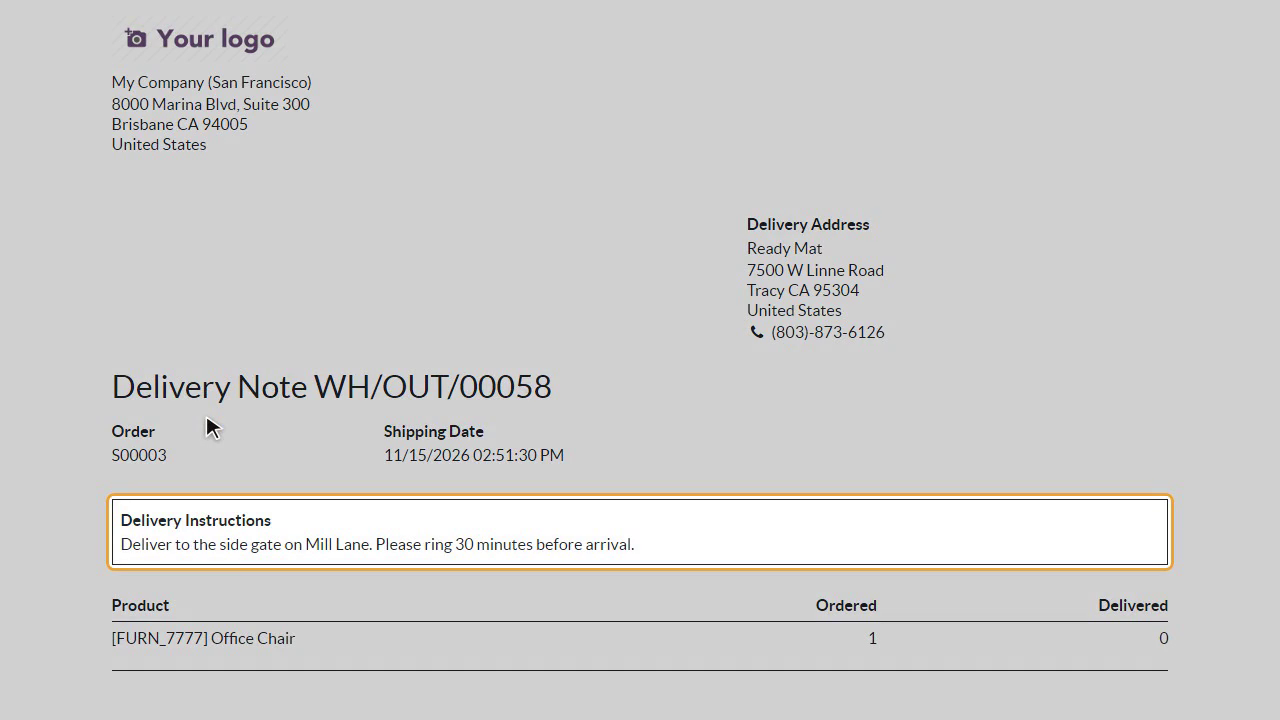
When we print the Quotation or Order PDF, include the delivery instructions somewhere under the order lines - but only if there's actually something written in it.
Functionary AI checks Odoo's standard apps and modules first. If nothing covers it, it offers to log it as a custom build. Say yes, and allow it when your browser asks.
4. Planning it
A minute or two later, your project's page asks: "There's no existing functionality that covers this. Can I go ahead and plan a new build?" Click Yes, plan it.
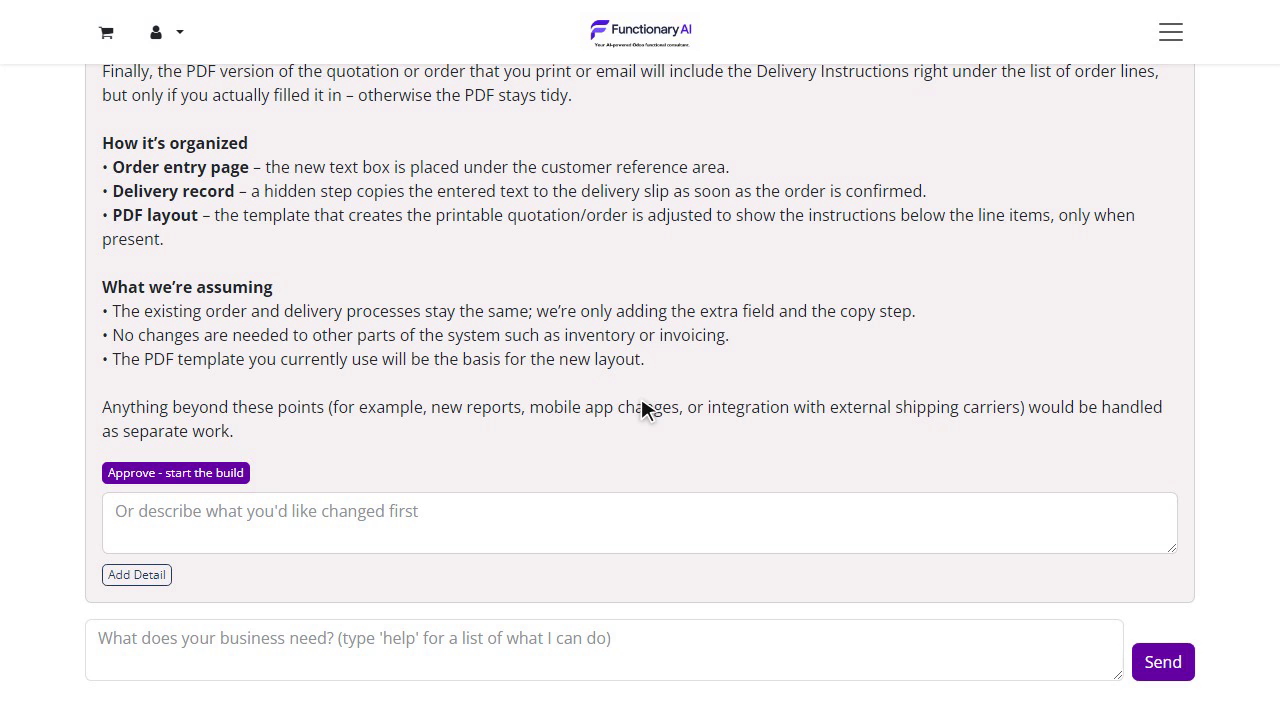
A couple of minutes after that, the plan appears on the page, in plain English: what will be built, how the work is organised, and what it assumes. Read it through.
- If it's what you asked for, click Approve - start the build.
- If something needs changing, describe it in the box under the plan and click Add Detail. Functionary AI revises the plan and shows it to you again.
5. While it builds
Once you approve the plan, the build starts, and your project's page says A custom build is in progress. Functionary AI builds the change on its own, in a copy of your Odoo.
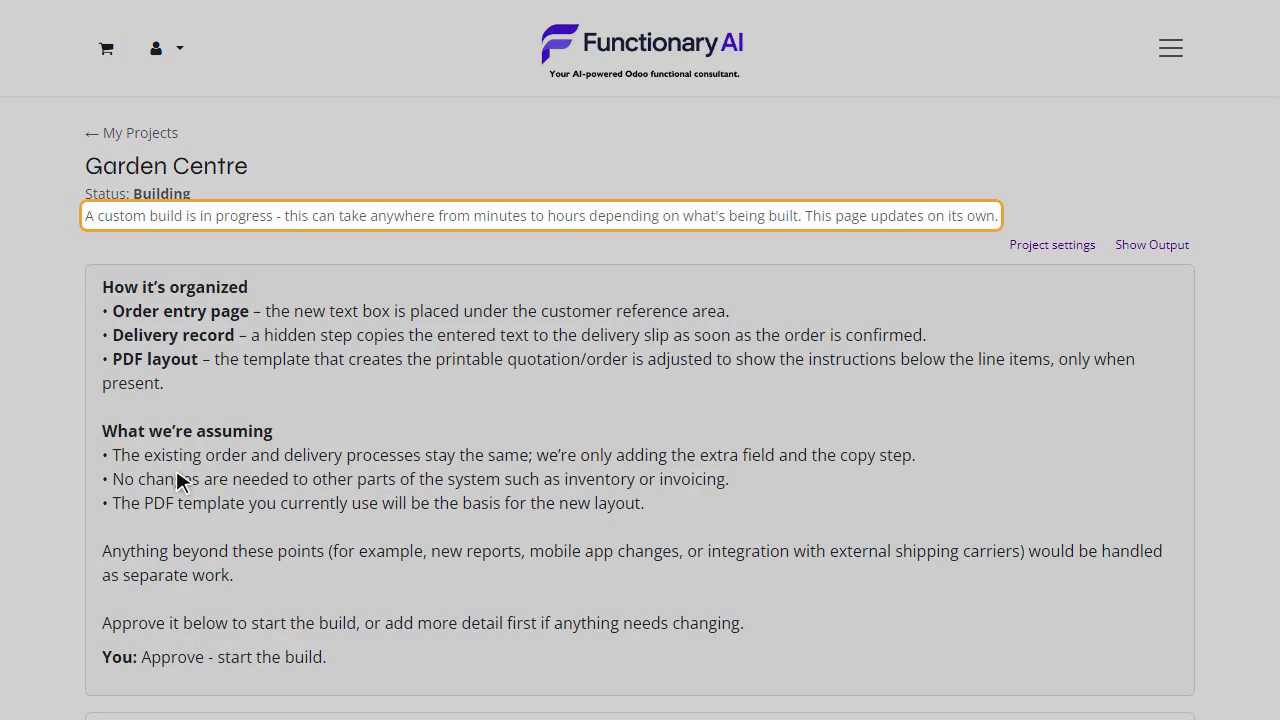
There's no need to wait. There's a lot happening, and depending on the job, a build can take a couple of hours. You can close your browser and get on with your day.
Do check back on your project now and then while it builds. If Functionary AI needs a clarification or has a question, it asks in the chat on your project's page, and the build waits until you answer.
6. Trying it out
When the build is finished, the chat on your project's page says your custom build is ready to try, and Functionary AI has started a fresh Try-It with the change in it. Click Open Try-It and sign in with your Try-It admin login.
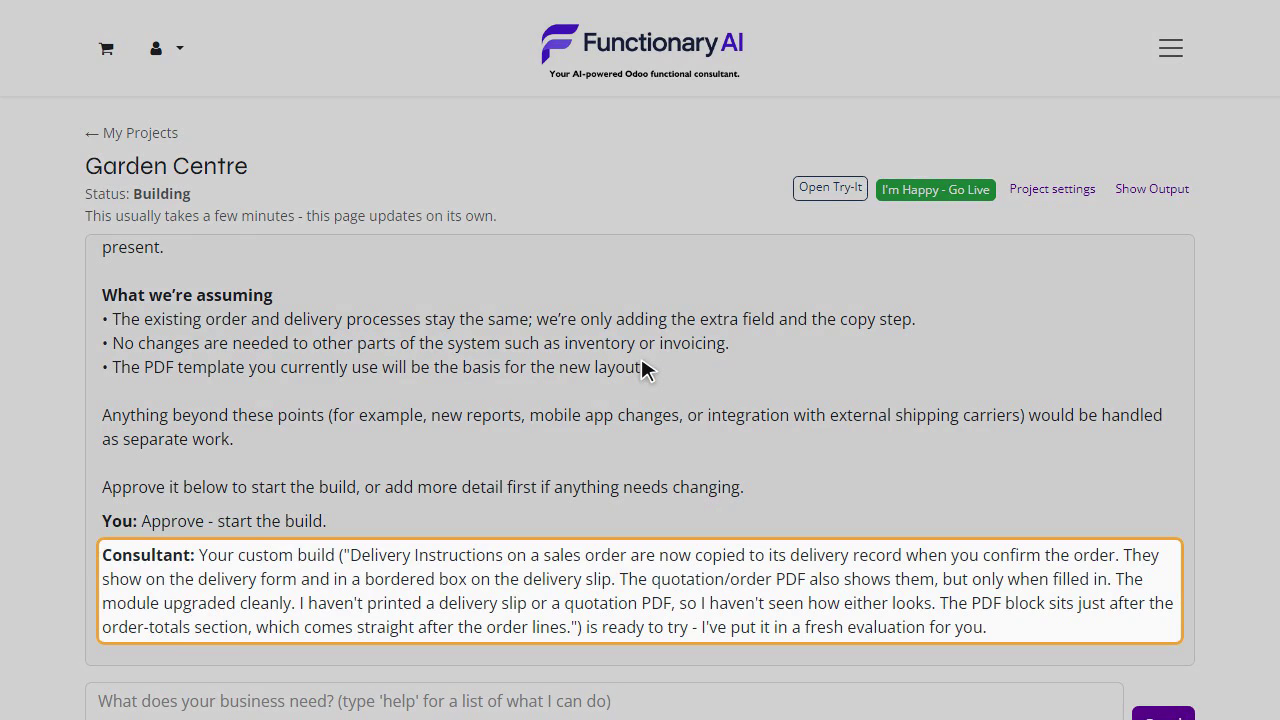
Now check it does what you asked, step by step. For the delivery instructions in our example:
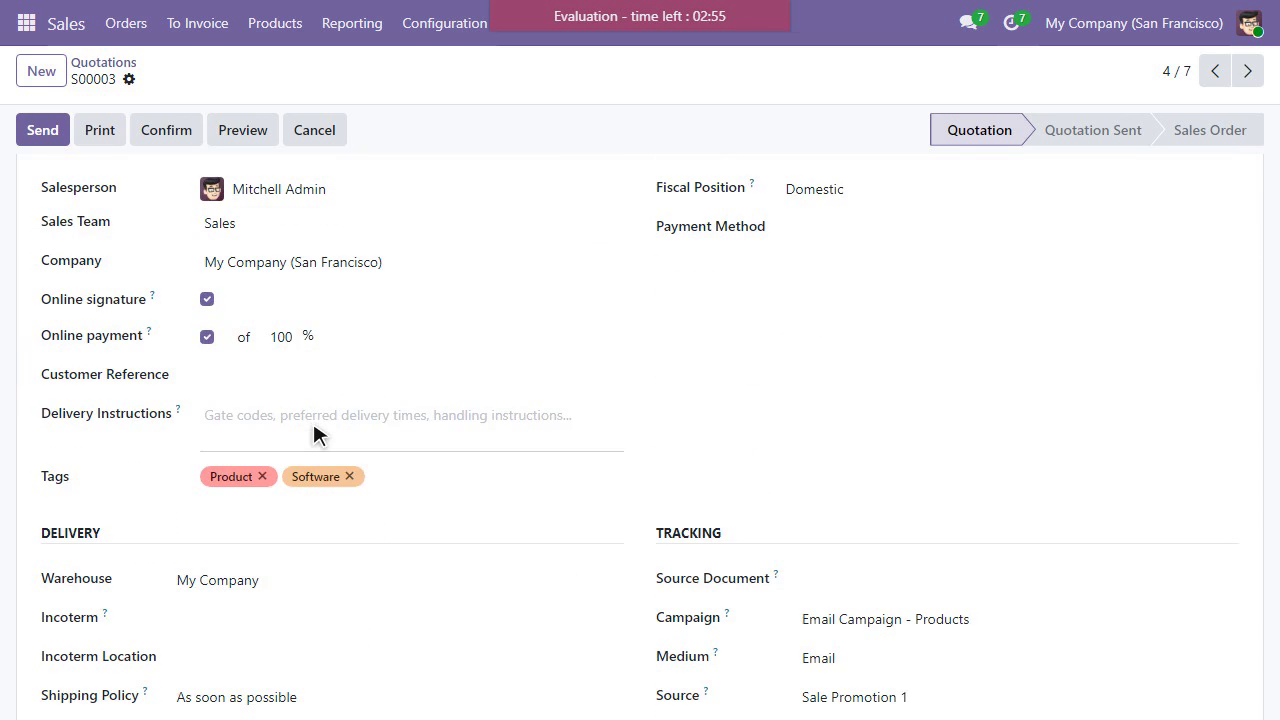
- Open Sales and a quotation, and go to Other Info. Delivery Instructions is just below Customer Reference. Type the instructions and save.
- Print the quotation. The instructions are under the order lines and the total. A quotation without instructions prints without the section.
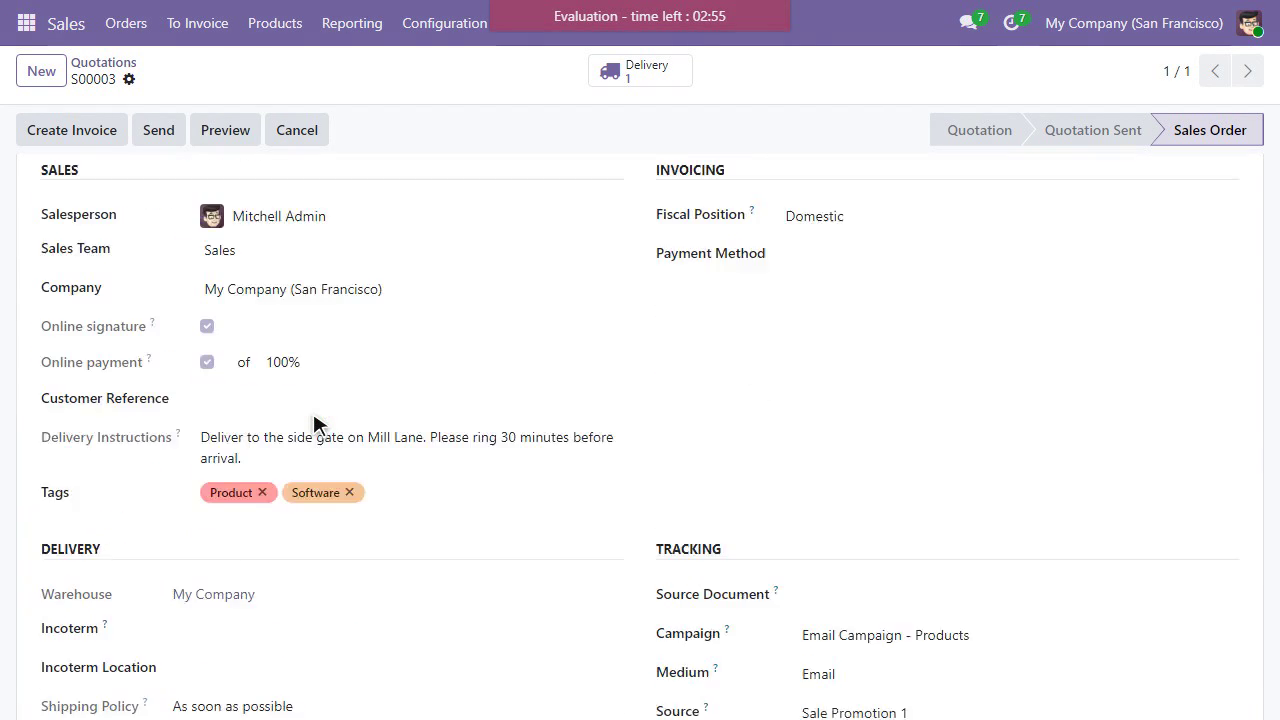
- Click Confirm. The quotation becomes a sales order, and the instructions are locked: they can no longer be changed.
- Click Delivery at the top of the order to open its delivery order. The same instructions are on its Additional Info tab, and on the printed delivery slip.
If something isn't quite right, say so in the chat, in your own words - for example, "move the delivery instructions above Customer Reference". Functionary AI changes what it built, rather than starting again. Like everything in your Try-It, what you type there is sample data only and is not carried over when you go live.