Prefer to read? Everything in the video is covered below. Captions are in the player menu.
A project is one Odoo system that Functionary AI plans and builds for you. To build one you need a package: it decides the server your Odoo runs on and how much Functionary AI can build for you.
This article takes you from an empty My Projects page to your first Try-It site: a working copy of your new Odoo to try out before anything goes live. You need an account first - see Creating your Functionary AI account.
1. Name your project
Sign in, and click Your Projects on your account page. Type a name for your project - your business name is fine - and click Create.
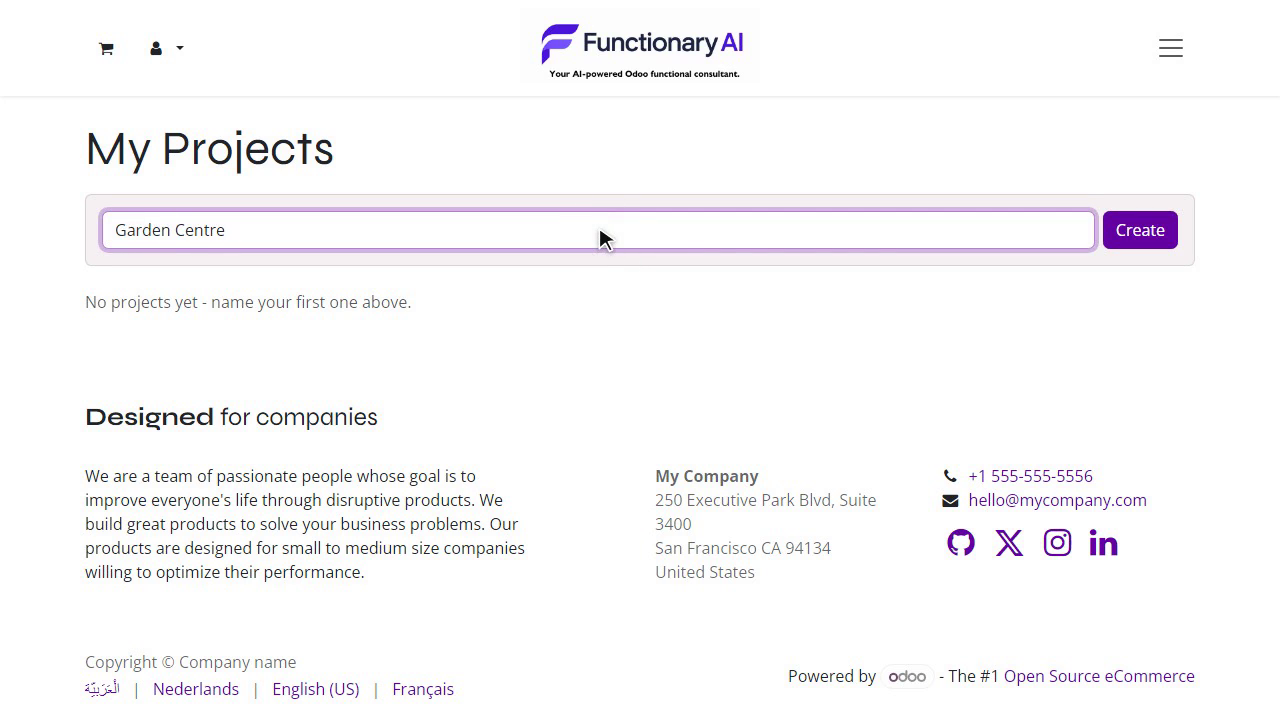
If you haven't chosen a package yet, Functionary AI takes you to the pricing options first, and the project isn't created yet: Functionary AI keeps the name you typed, and creates the project as soon as your package is paid for (step 6).
2. Choose a package
The Pricing Options page shows the packages side by side, with what each one includes.
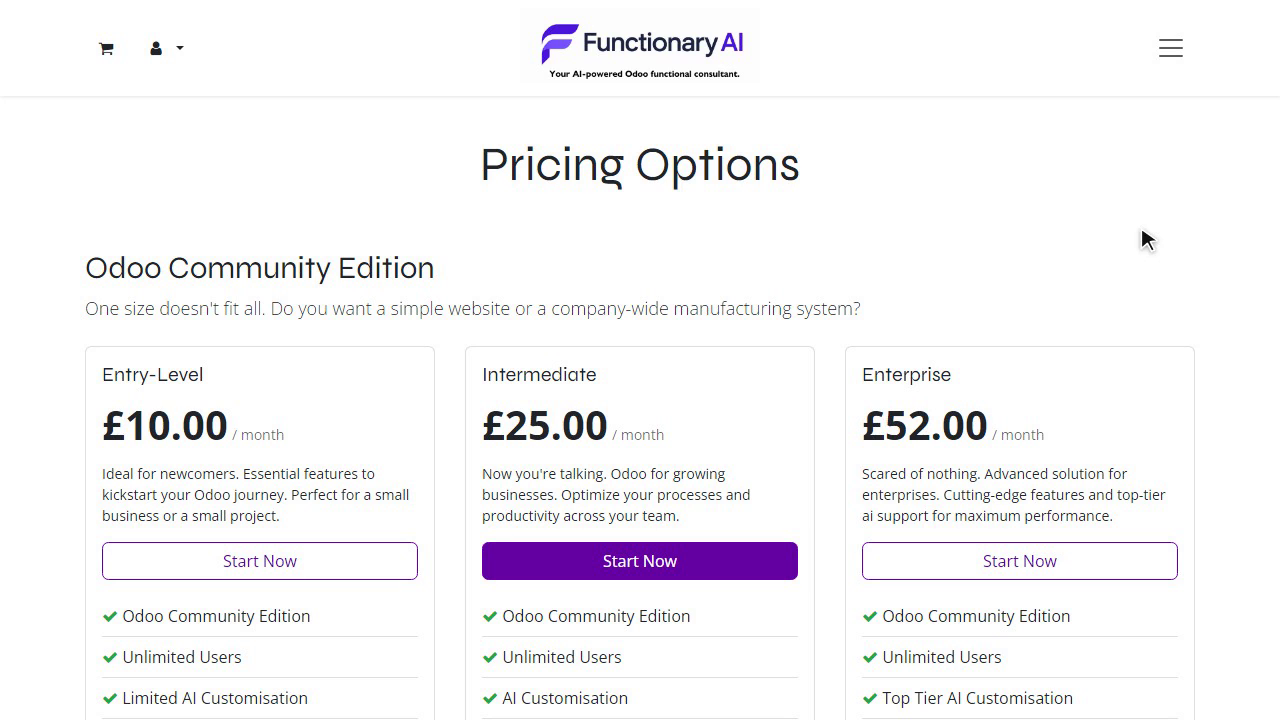
| Package | Price | For |
|---|---|---|
| Entry-Level | £10 a month | Newcomers and small businesses: everything to get going with Odoo, on a shared server. |
| Intermediate | £25 a month | Growing businesses: more AI customisation, and a server of your own. |
| Enterprise | £52 a month | Larger set-ups: more memory, storage and traffic, on servers of their own. |
Click Start Now under the package you want. All three are bought the same way.
3. Choose how to pay
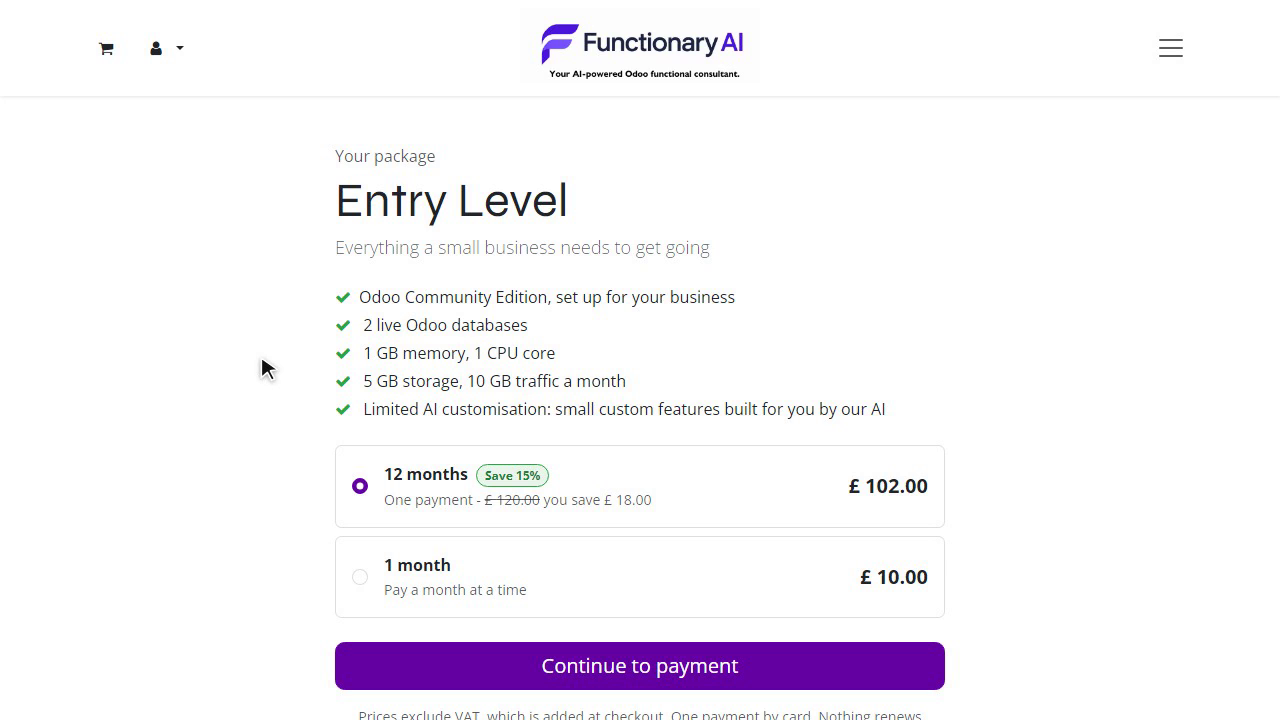
The package page lists what is included, and offers two ways to pay:
- 12 months - one payment for a year, 15% off (Entry Level: £102 instead of £120).
- 1 month - pay a month at a time (Entry Level: £10).
Prices are shown without VAT, which is added at checkout. Nothing renews automatically. Choose one and click Continue to payment.
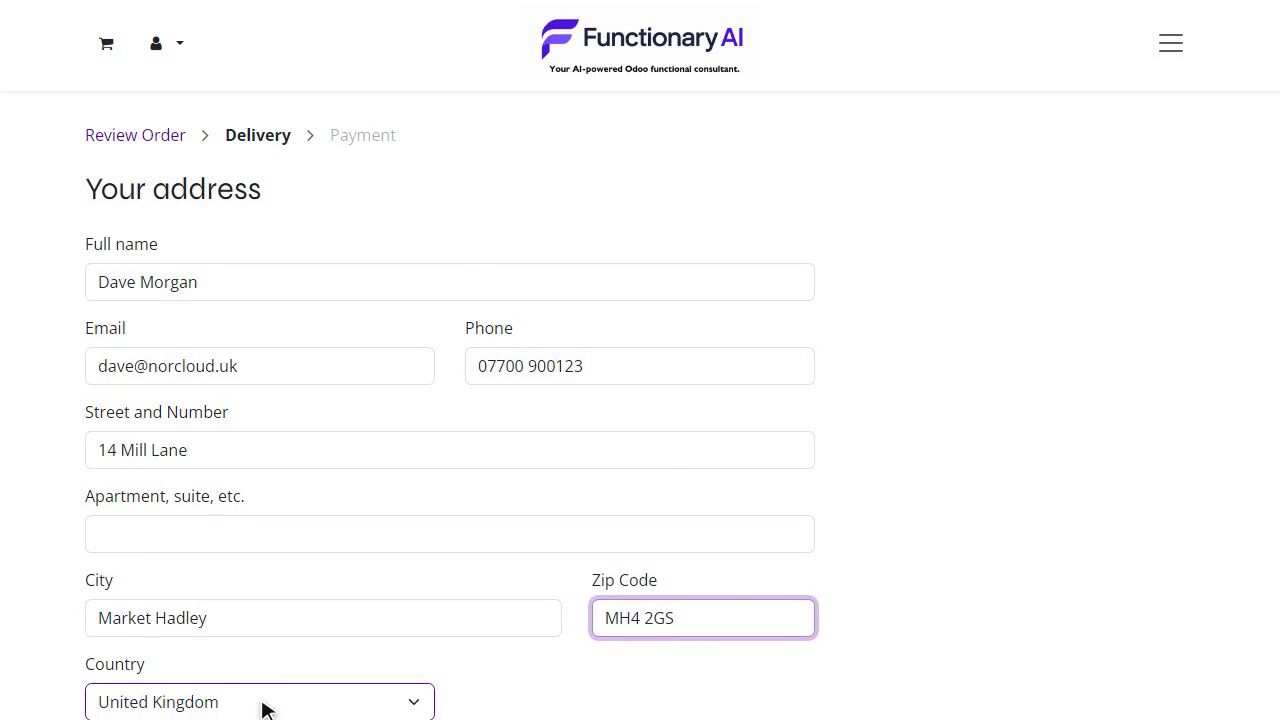
4. Your billing address
The first time you buy, the shop asks for your billing address. Your name, email and company are filled in from your account. Add your phone number (it is required here) and your address, choose your Country, and click Save address.
5. Pay
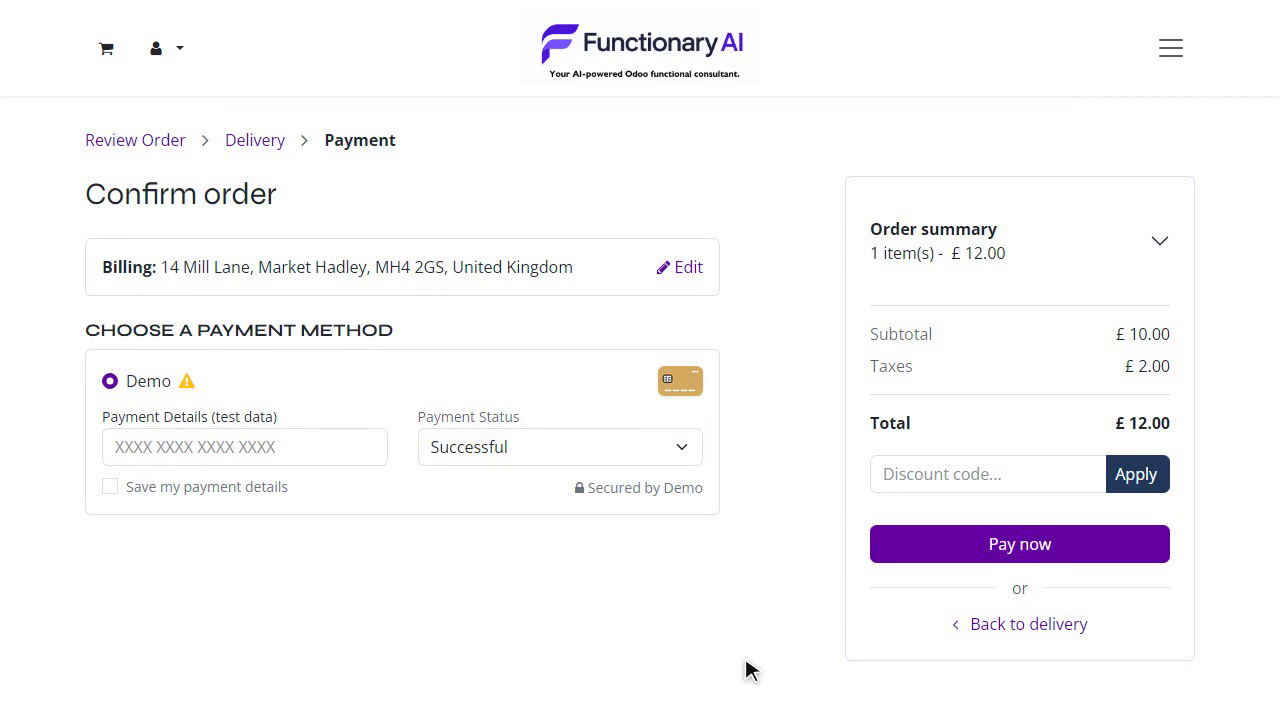
Check your order on the right: the package, the price, VAT and the total. Enter your card details and click Pay now.
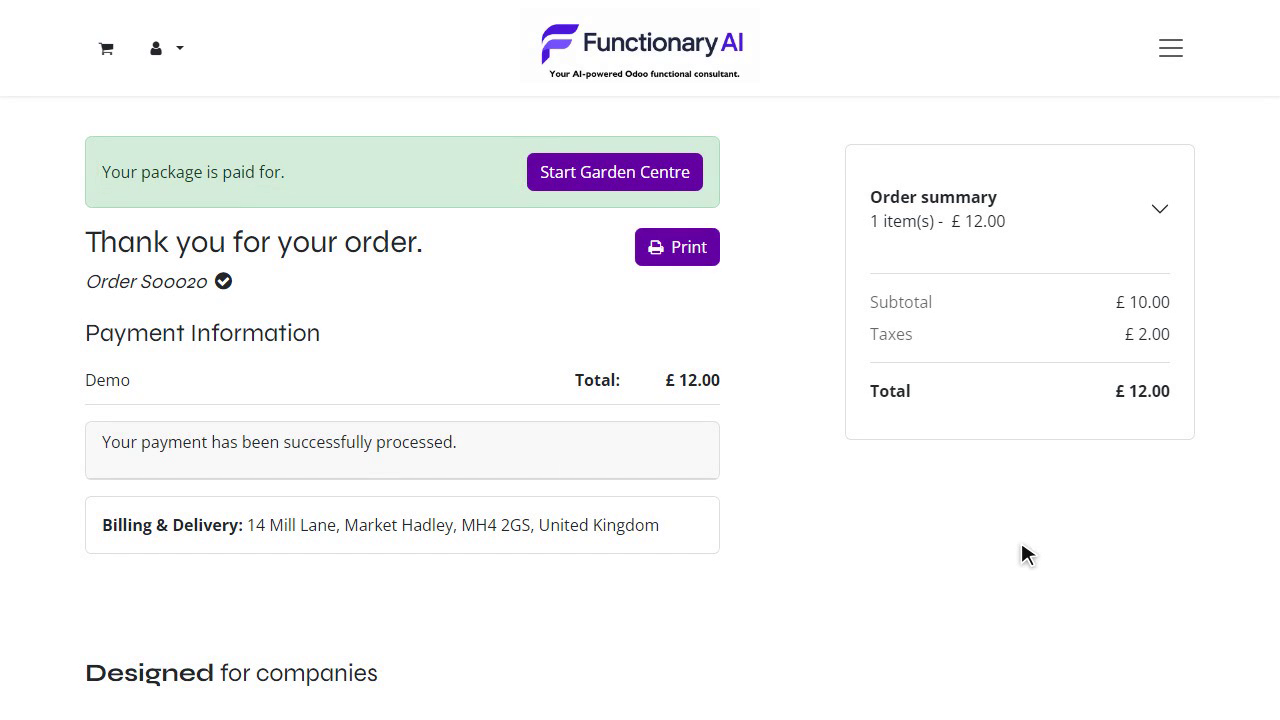
When the payment has gone through, the page says Your package is paid for. The button next to it starts the project you named in step 1: Start followed by its name.
6. Your project opens
Click the Start button: Functionary AI creates the project with the name you typed, and opens its page. (If you didn't type a name, the button says Go to your projects: name your project there and click Create.)
7. Choose how to get started
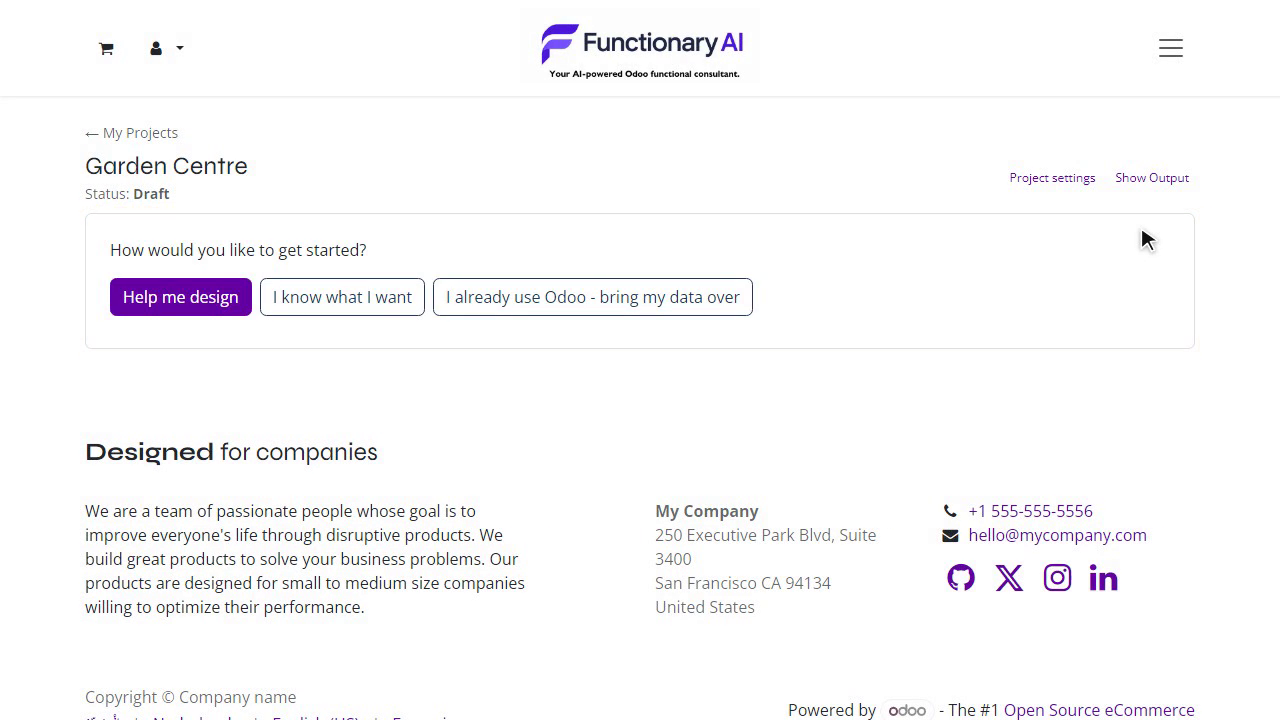
Your project's page asks How would you like to get started? There are three ways:
| Choice | What happens |
|---|---|
| Help me design | Functionary AI asks you questions about your business, then suggests the Odoo apps to start with. Best if you are new to Odoo. See step 8. |
| I know what I want | You pick the Odoo apps yourself, from a list. See step 9. |
| I already use Odoo - bring my data over | For businesses already running Odoo 18 or 19: upload a backup of your database, and any modules made for you. Our team checks it before it is brought over. This has an article of its own. |
8. Help me design
Functionary AI asks one question at a time, in plain English. Click the answer that fits best. Each answer decides the next question, so you only see questions that matter to your business; a note tells you when an earlier answer made one unnecessary.
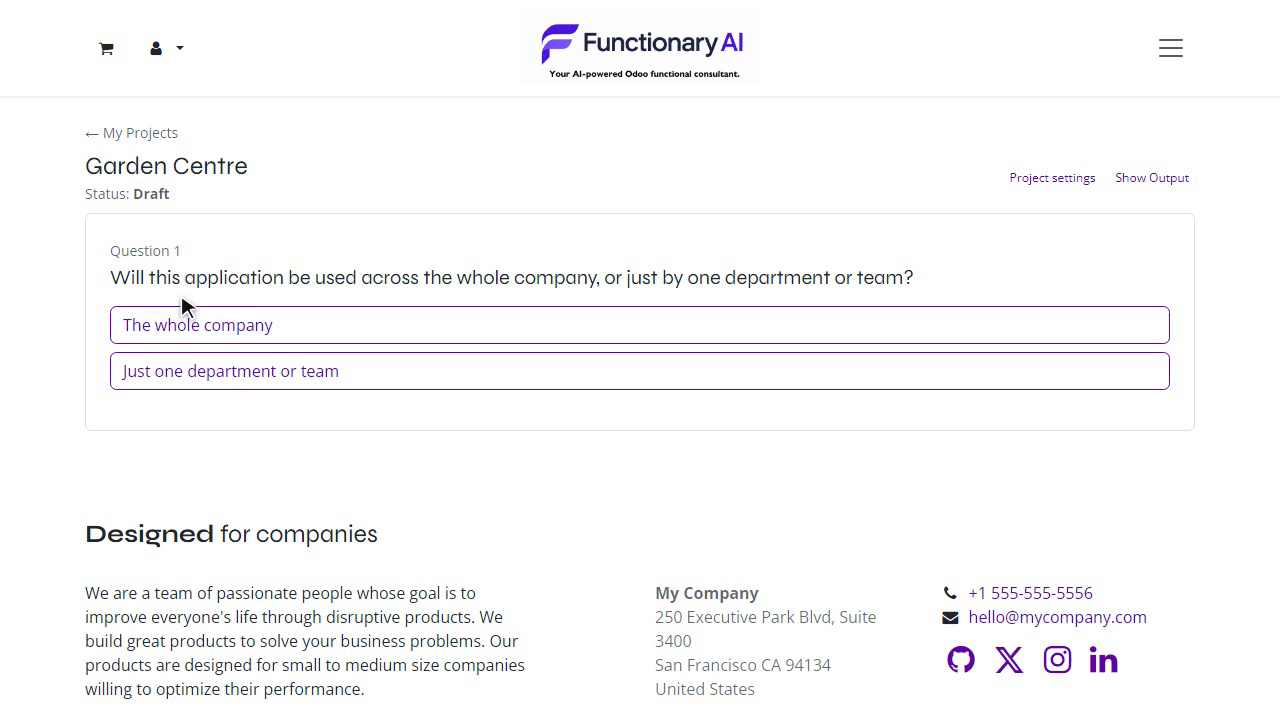
- Some questions let you type your own answer, or choose Other and describe it in a sentence.
- A question that isn't required has Skip this question under it.
- Your answers are saved as you go: if you leave the page, you carry on where you stopped.
After the last question, Functionary AI suggests what to start with - the features it found for your answers, each marked Must have or Recommended.
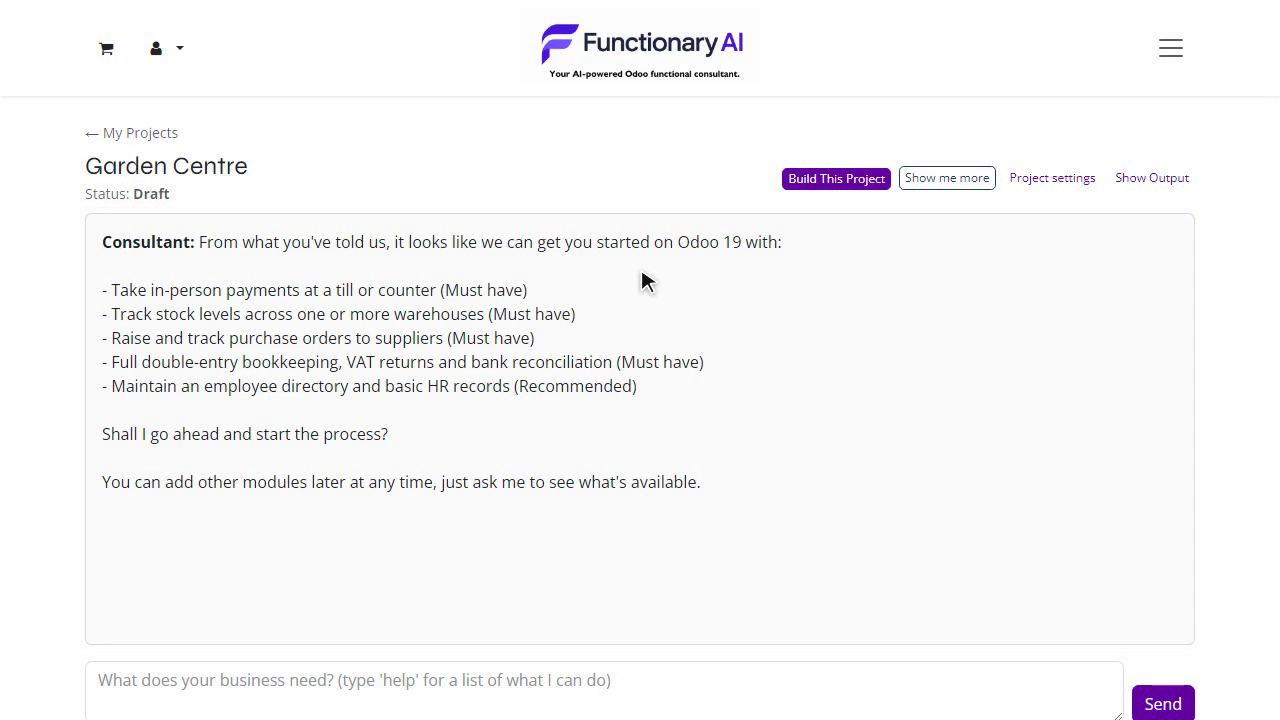
- Show me more lists other features you can add.
- You can also add apps later, at any time: just ask in the chat.
When you are happy with it, click Build This Project and go to step 10.
9. I know what I want
Three short steps, each a list to tick:
- Choose your apps - the Odoo apps you want, such as Point of Sale, Inventory, Purchase or Invoicing.
- Related features - extra features that go with the apps you picked. Tick any you need, or just click Next.
- Additional functionality - extras from Functionary AI, such as the Help Desk, which lets your staff report a problem from any screen.
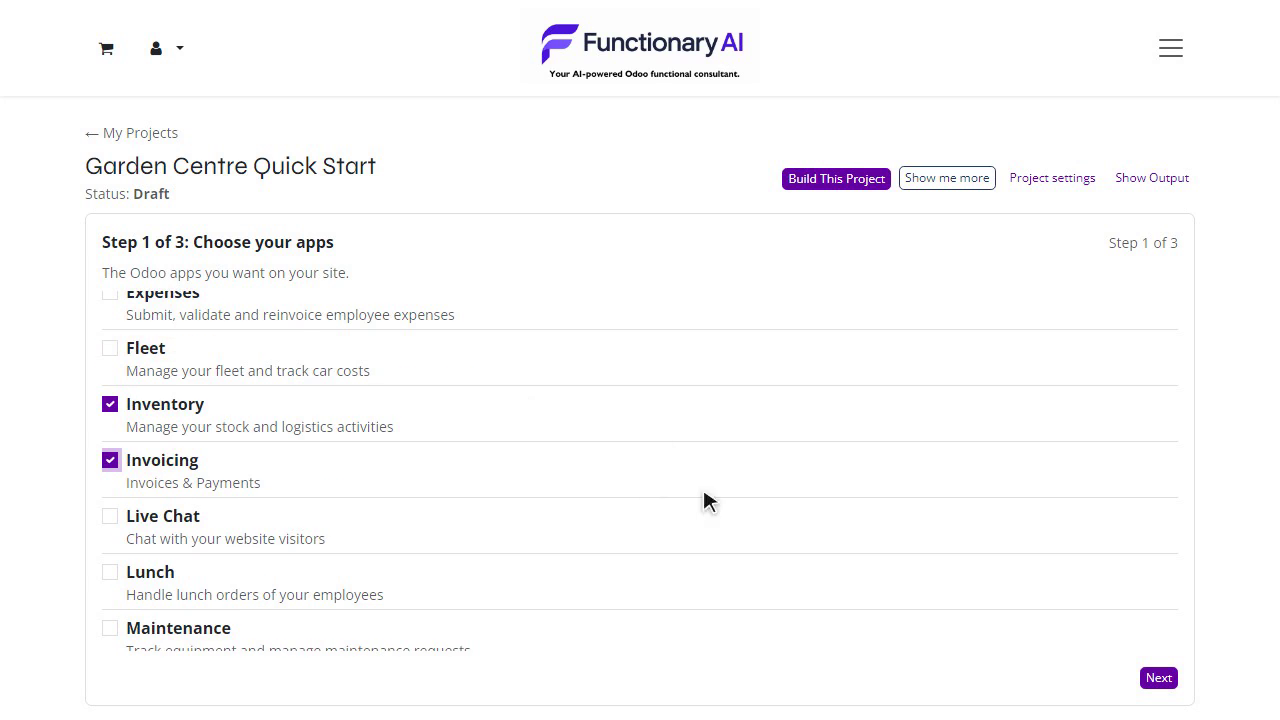
Back returns to the previous step. Click Finish on the last step, then Build This Project. To change your choices before building, click Show me more to open the lists again.
10. Set your Odoo admin login
Before the build starts, you set the admin login for your new Odoo. Your email address is filled in; choose a password, type it again in Confirm Password, and click Build Your Project.
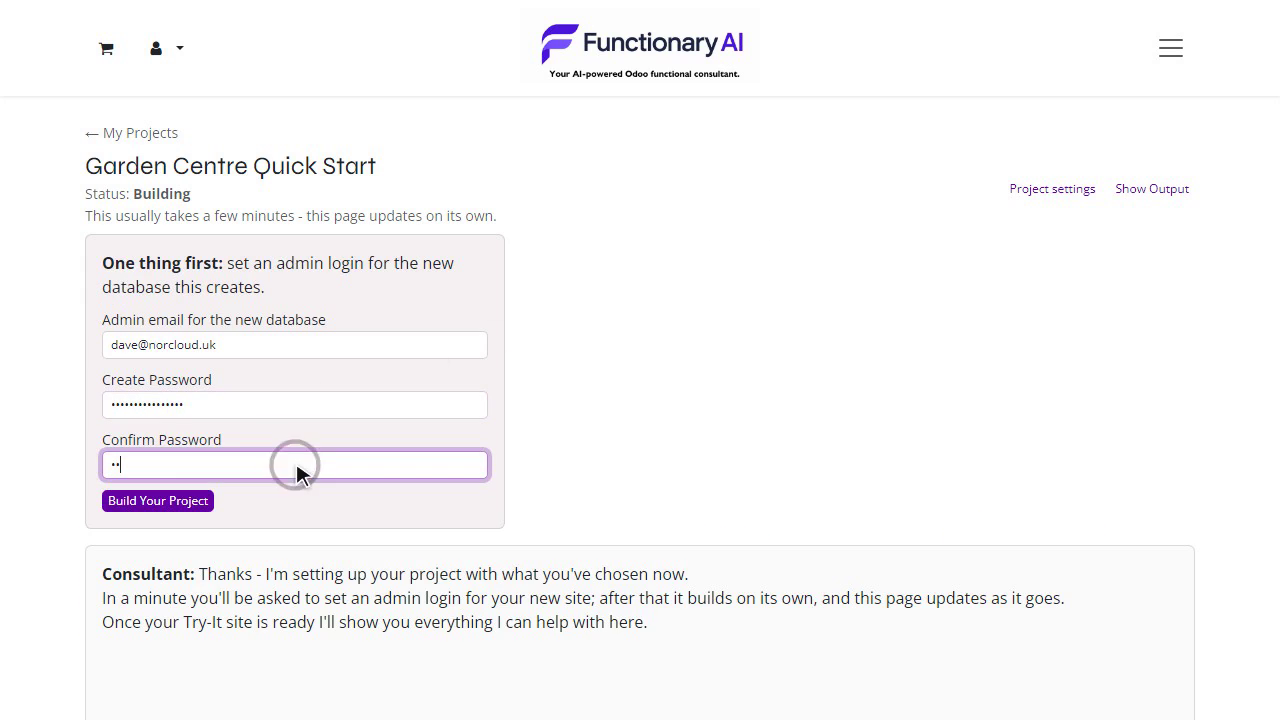
This is the login you will use to sign in to your Odoo itself - keep it safe. It is separate from your Functionary AI account.
11. While it builds
The status changes to Building. Building takes about ten minutes, and the page updates on its own: you don't need to refresh it. You can also close it and come back later; the build carries on. Show Output shows what is happening, step by step.
12. Your Try-It site is ready
When the build has finished, Open Try-It appears at the top of your project's page. It opens your Try-It site: a working copy of your new Odoo, to try out before anything goes live. Sign in to it with the admin login from step 10.
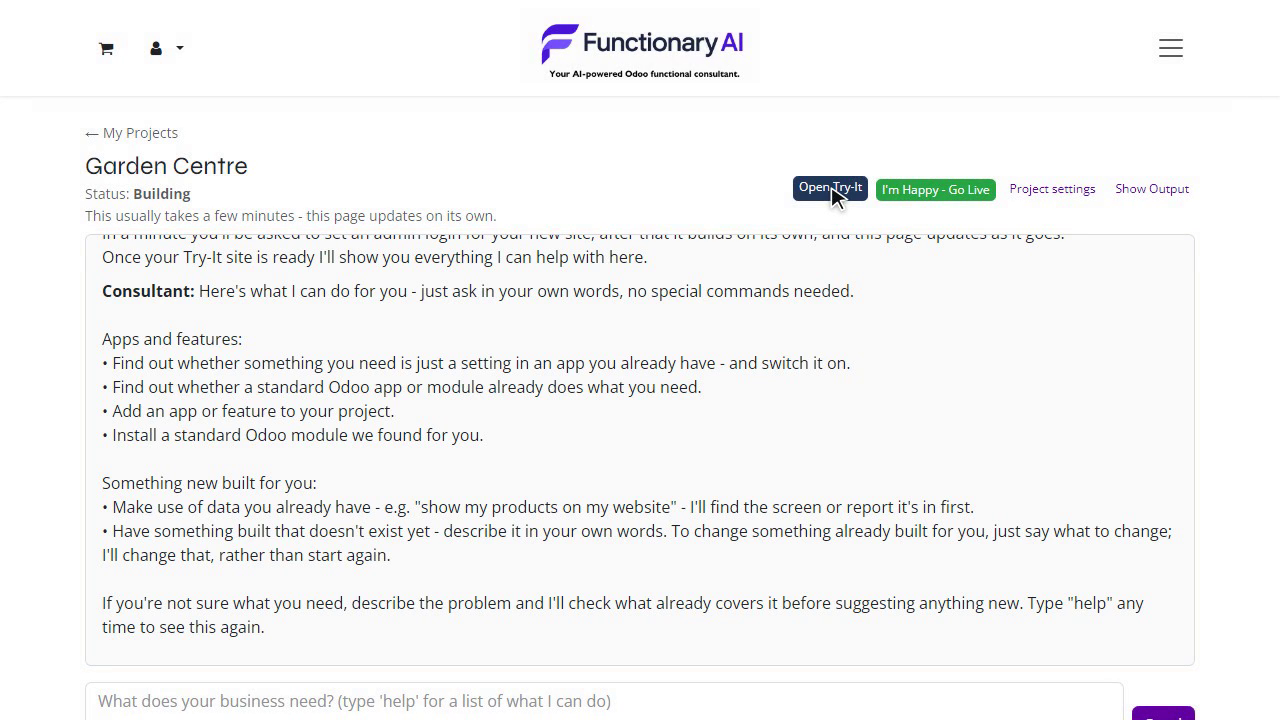
The chat now lists everything Functionary AI can help you with: finding a setting, adding an app, or having something new built for you. Type help at any time to see the list again.
I'm Happy - Go Live turns your project into your live system. Try it out first; going live has an article of its own.
More than one project
You can start another project at any time from My Projects, with either way of getting started. How many projects you can build at once depends on your package.