Prefer to read? Everything in the video is covered below. Captions are in the player menu.
Going live turns your project into your real Odoo: your own system, on its own server, with no time limit. Do it when you have tried your project out and are happy with it - see Opening your Try-It and Asking for a change.
1. What goes live
Your live Odoo is built from your project, not from your Try-It:
- Carried over: the apps Functionary AI picked for you, anything it built for you, and your project's settings.
- Not carried over: Odoo's sample data, and anything you typed or changed in a Try-It. Your live Odoo starts clean, ready for your real data.
Your Try-It is deleted when you go live. It does not matter if it has already stopped: nothing in it is carried over anyway.
2. Going live
- Go to My Projects and click Chat next to your project.
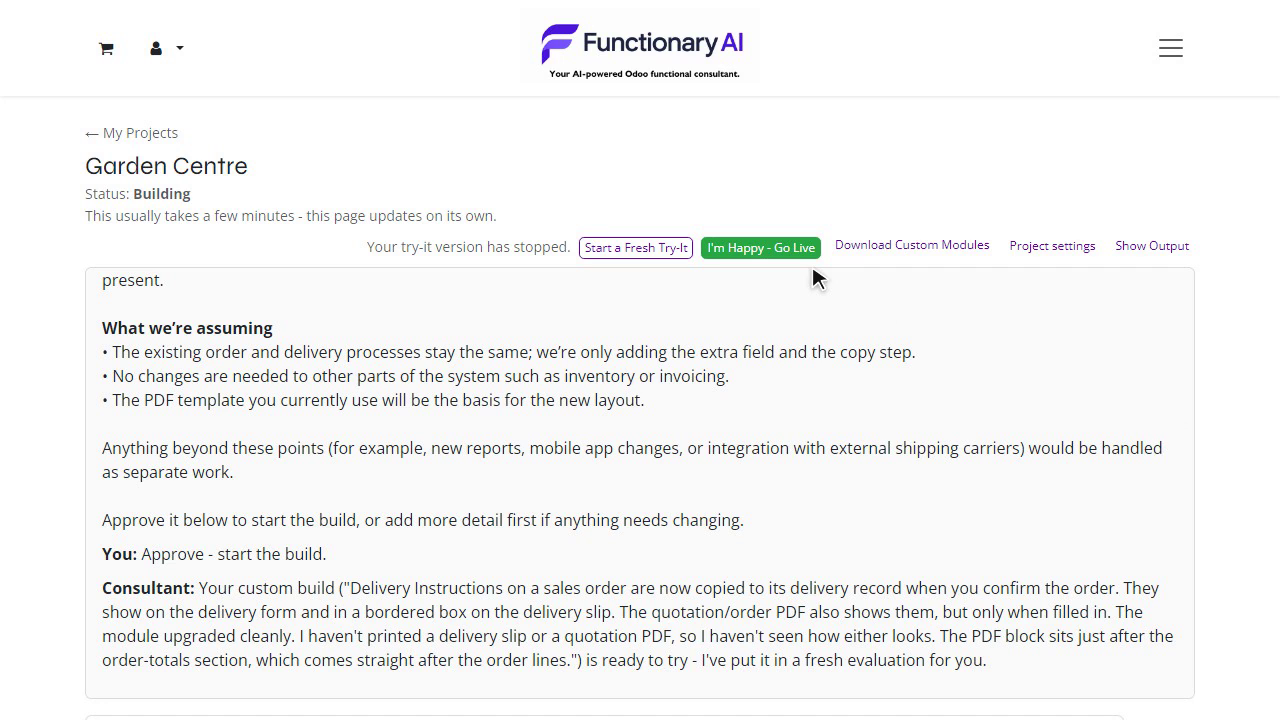
- Click I'm Happy - Go Live.
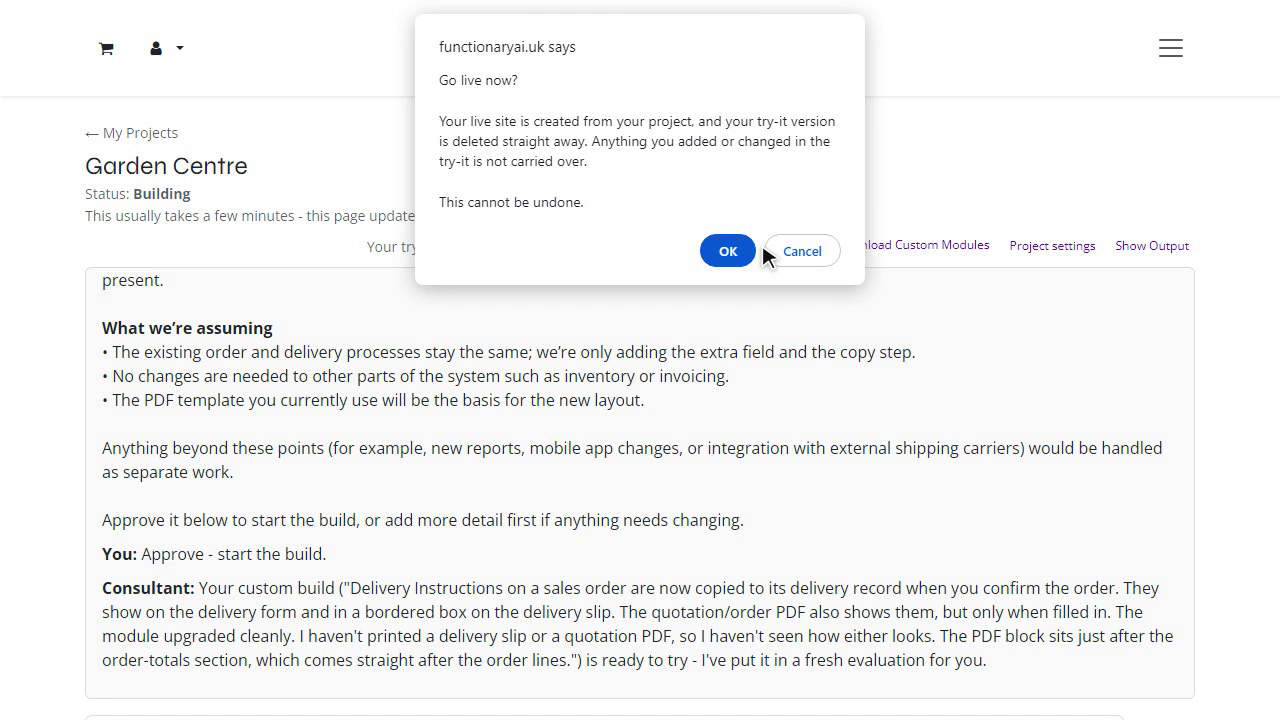
- Going live cannot be undone, so your browser asks you to be sure. Click OK.
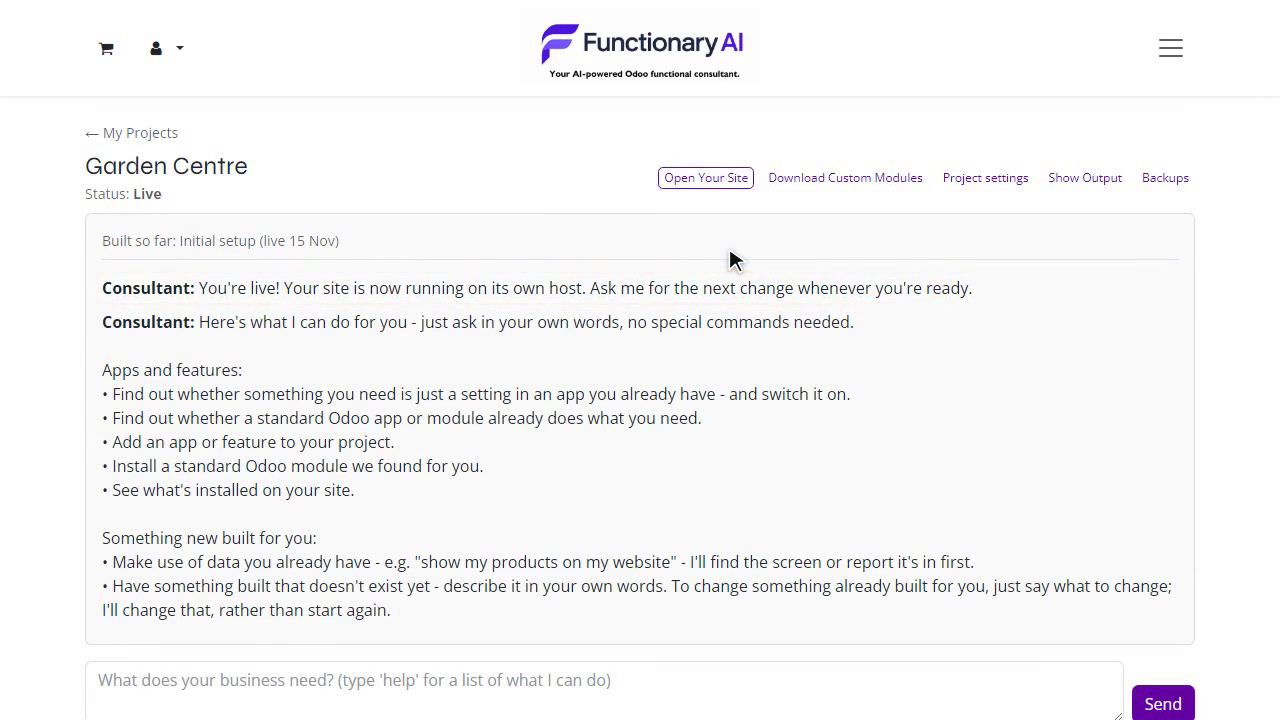
Your project's status changes to Live, and Functionary AI sets up your live Odoo on a server of its own. This takes a few minutes; you can close the page while it works. When it's ready, the chat says "You're live!" and the button at the top reads Open Your Site.
3. Your live Odoo
Click Open Your Site, and sign in with the same admin login you chose when you built your project (your email and that password). If you've forgotten which email, Project settings on your project's page shows it.
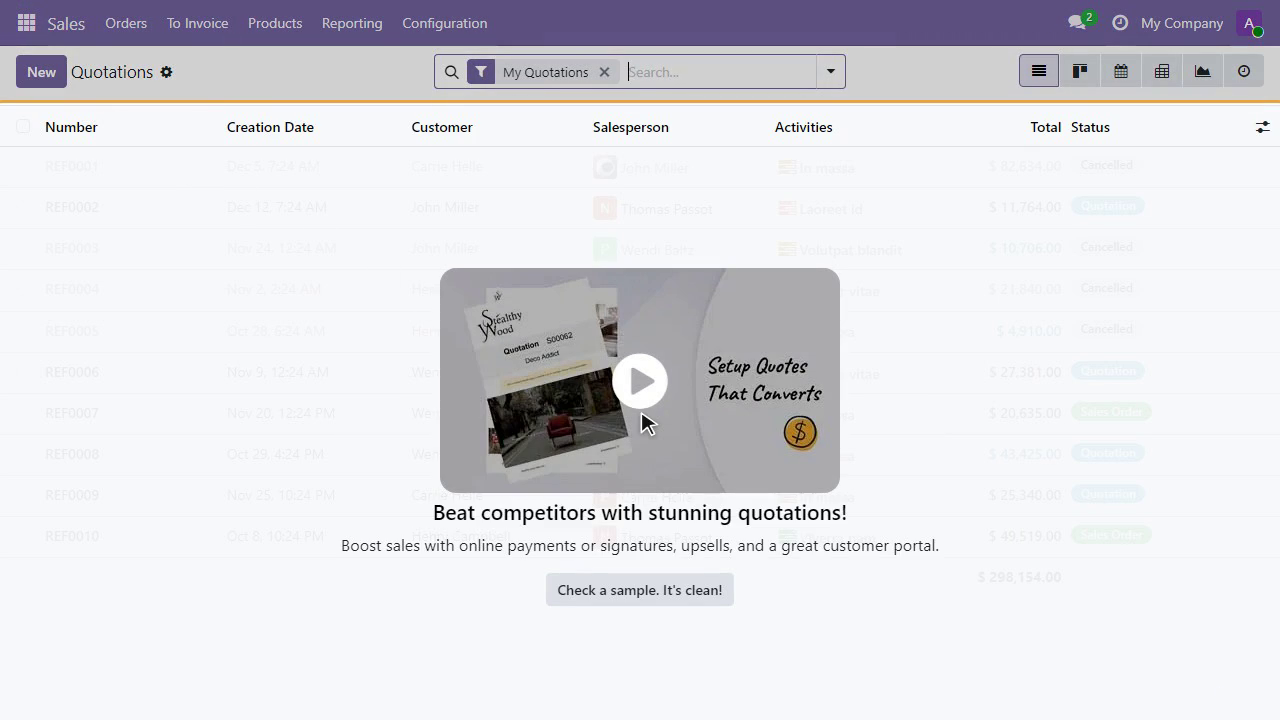
There is no countdown at the top this time: your live Odoo keeps running. And there is no sample data. A list with nothing in it yet shows faded example rows behind a short introduction; those are only Odoo showing what the list will look like.
Anything Functionary AI built for you is there - for example, Delivery Instructions on a new quotation's Other Info tab.
4. Your company's details
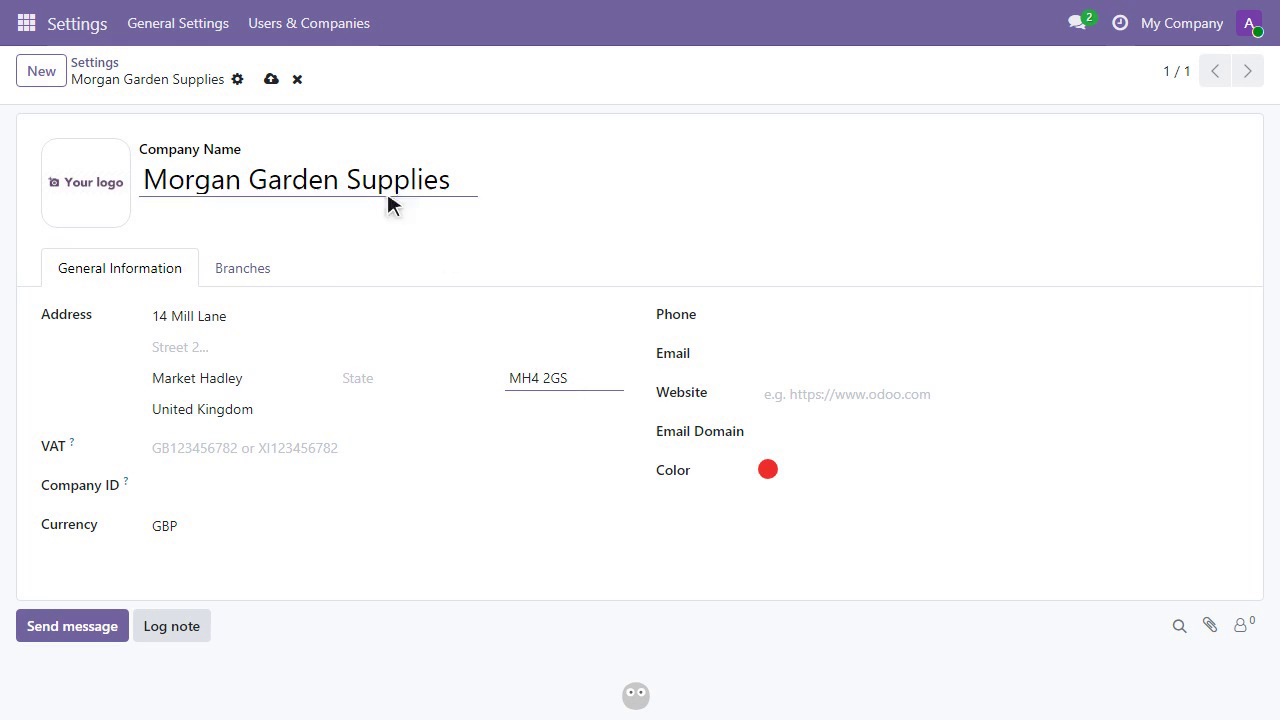
A good first job: put in your company's name and address, so they show at the top of every screen and on the quotations and invoices you send.
- Open the Settings app. Under Companies, click Update Info.
- Type your company's name, and its address.
- Click the save icon (the cloud) at the top.
5. Backups
Backups are off until you choose a schedule. On your project's page, click Backups:
- Pick Daily (or Weekly) under Backup schedule, and click Save.
- Open Backups again: you can now choose the Time of day (a time when nobody is working is best), how many days to keep each backup, and the most backups to keep. Click Save.
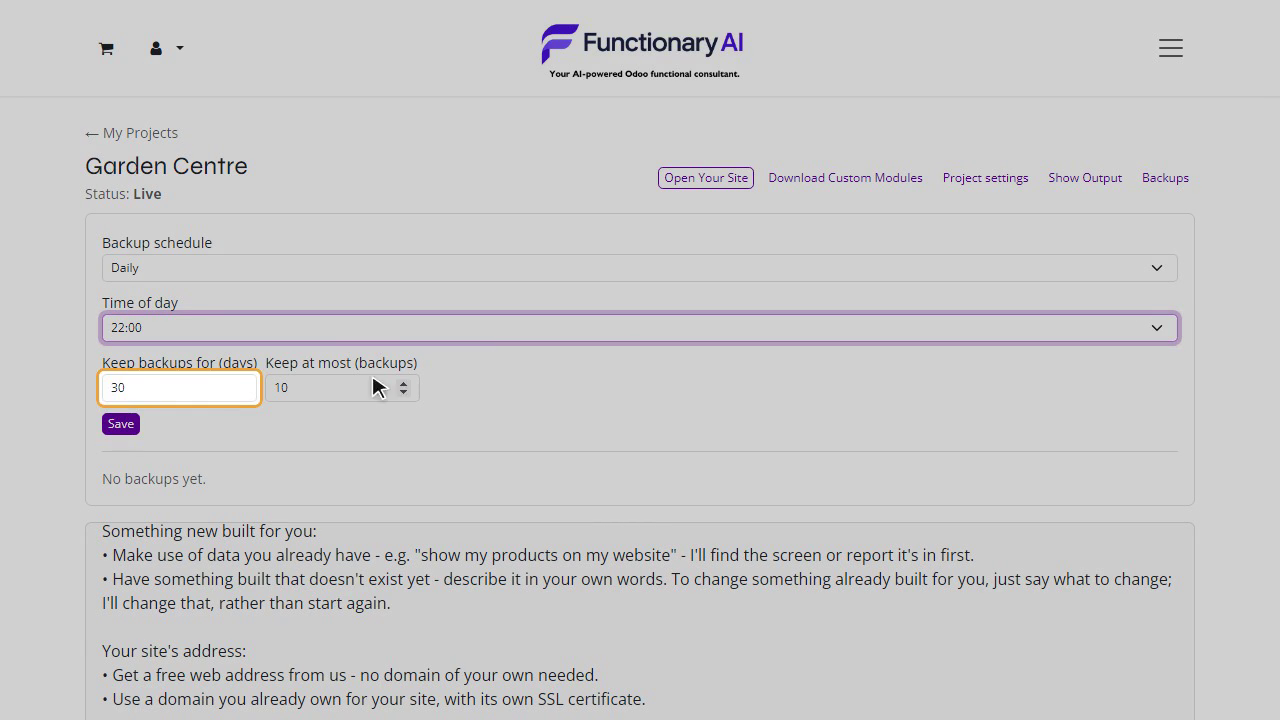
Your backups are listed under the schedule. For each one you can check it is intact (Verify), Download it, or Restore your live Odoo to how it was then. You can also ask in the chat to see or change your backups.
6. Your web address
Your live Odoo has its own address straight away. If you own a domain, open Project settings, enter it under Already own a domain?, and click Save: Functionary AI sets it up, with a security (SSL) certificate. If you don't have one, ask in the chat for a free web address.
7. After going live
- Download Custom Modules on your project's page gives you the code that was built for you. It is yours to keep.
- Ask for changes in the same chat, just as before. Each change is tried out in a Try-It first, and only goes into your live Odoo when you click Push changes to live.