Prefer to read? Everything in the video is covered below. Captions are in the player menu.
Your Try-It is a working copy of the Odoo that Functionary AI built for your project. Use it to find your way around and to try things out before anything goes live. You need a project with a finished build first - see Choosing a package and starting your first project.
1. Open your Try-It
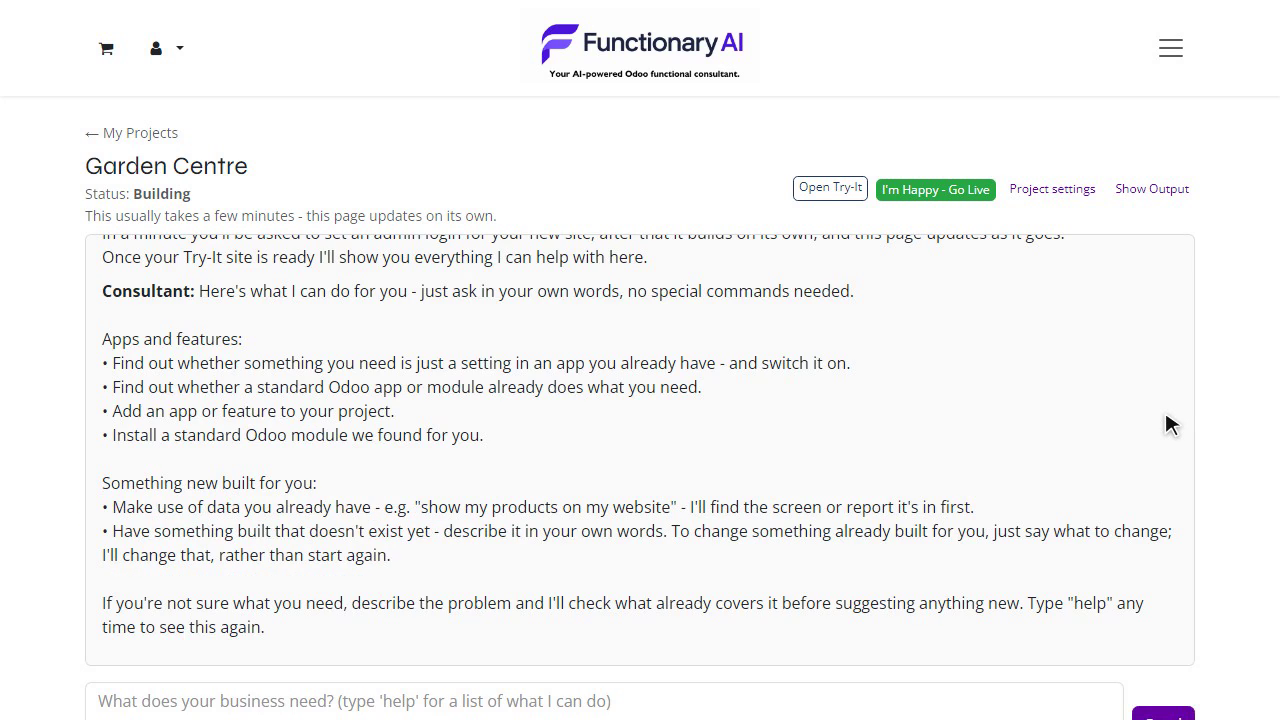
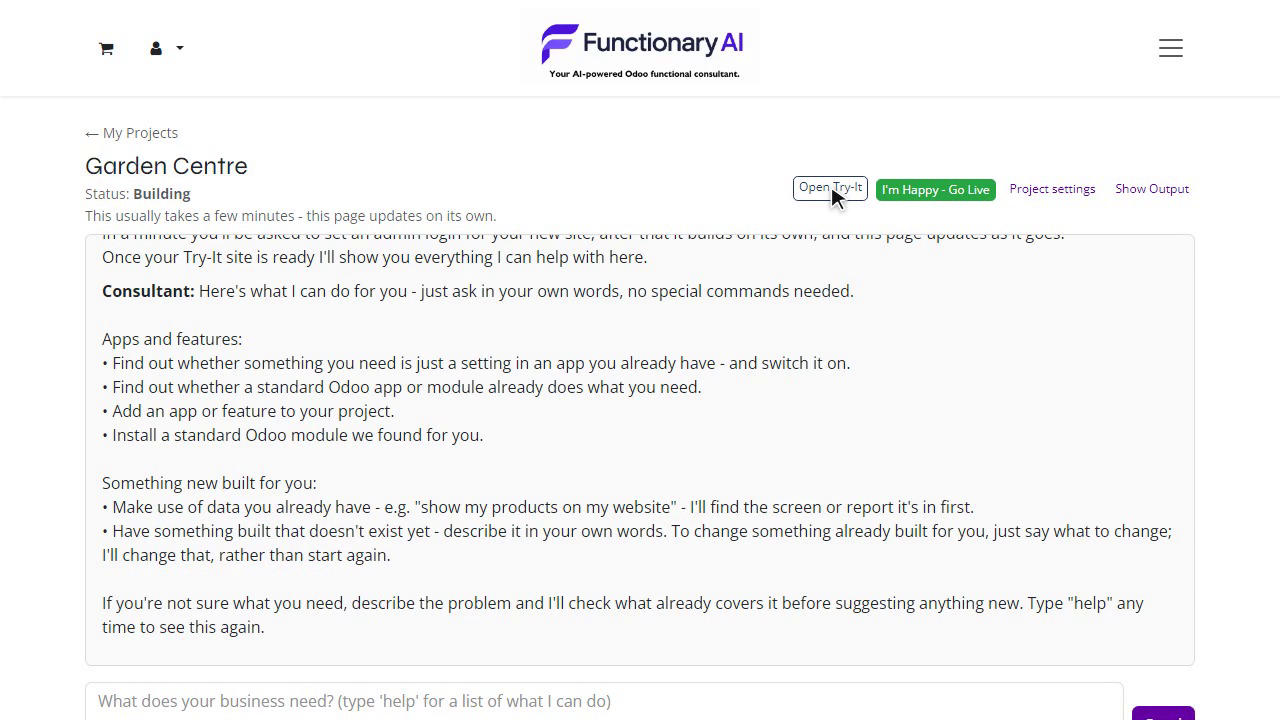
Go to My Projects and click Chat next to your project. When the Try-It is ready, the top of your project's page shows Open Try-It. Click it: your Try-It opens in a new browser tab.
2. Sign in
Your Try-It is an Odoo of its own, at its own address, so it asks you to sign in. Use the admin login you set when you built the project: your email address and the password you chose. Your Functionary AI password does not work here.
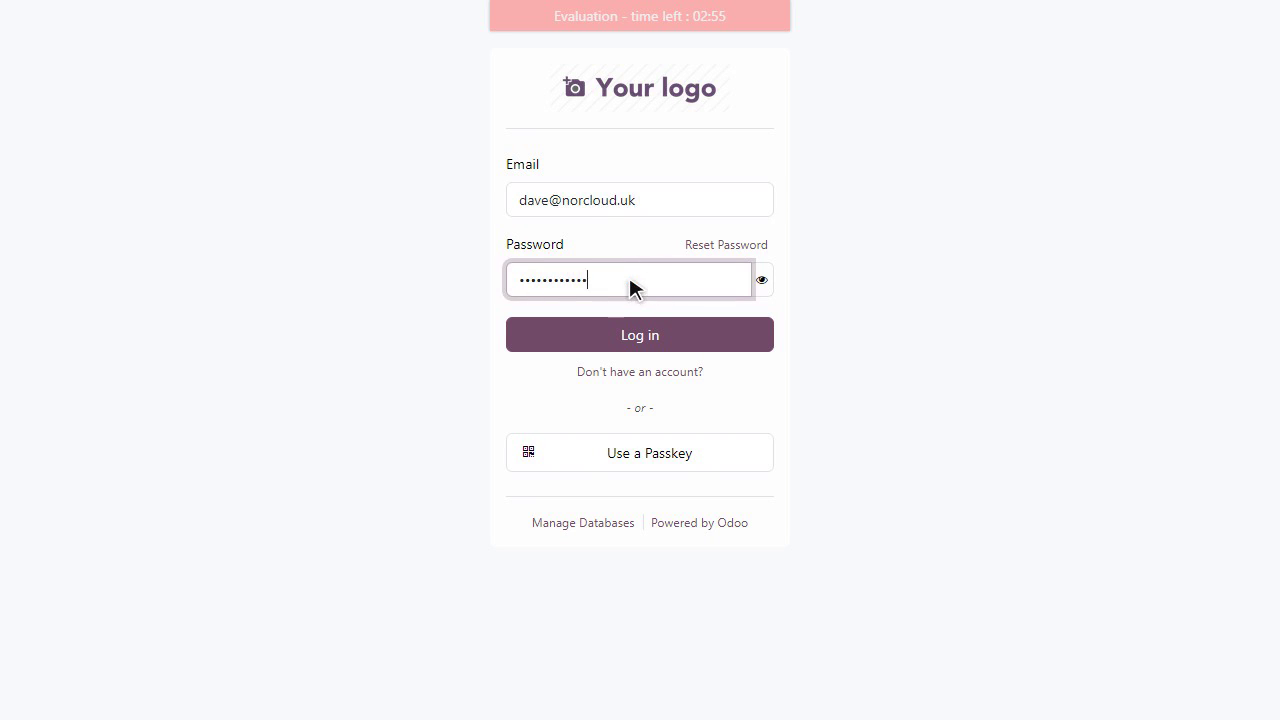
Forgotten which email you used? Project settings on your project's page shows it.
3. What you see
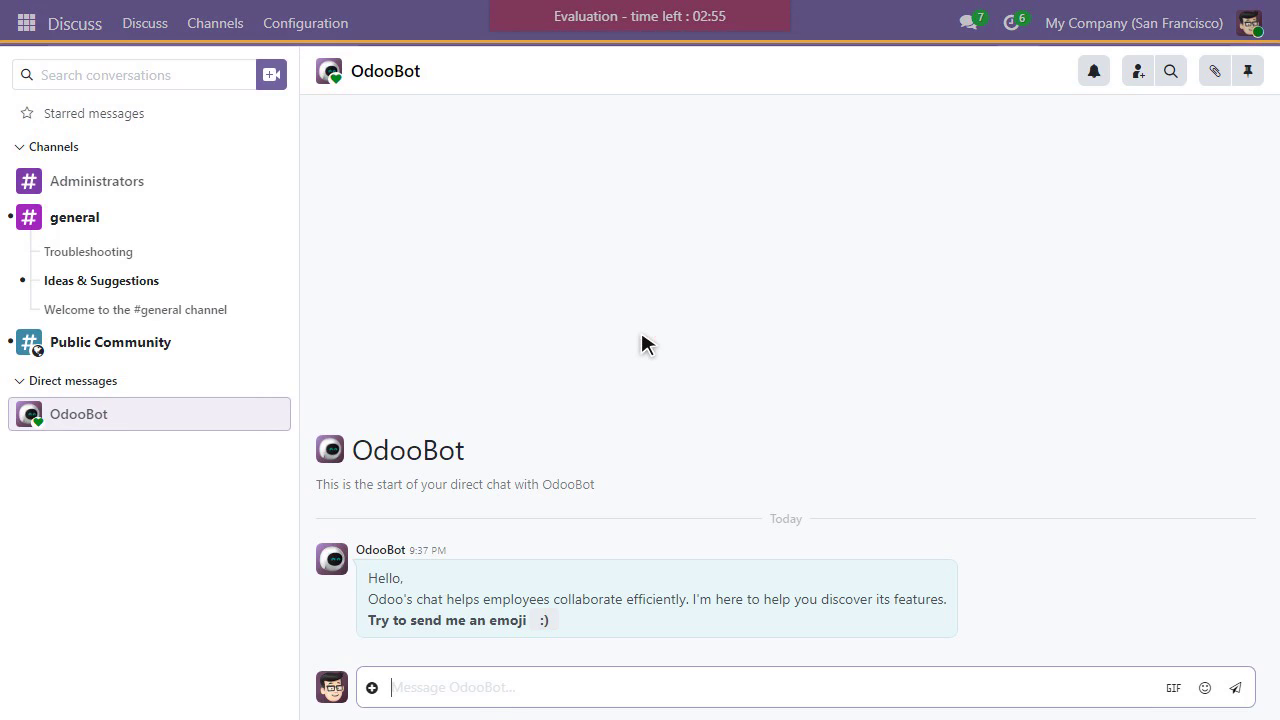
Odoo opens on Discuss, its chat for your team. Two things to know straight away:
- The countdown. The banner at the top shows how long your Try-It has left. A Try-It runs for three hours, then stops.
- Sample data. Your Try-It is filled with Odoo's sample data: a made-up company (shown top right), with made-up products, customers, suppliers and staff. It is there so you have something to try things on. None of it is yours, and none of it goes live.
4. Your apps
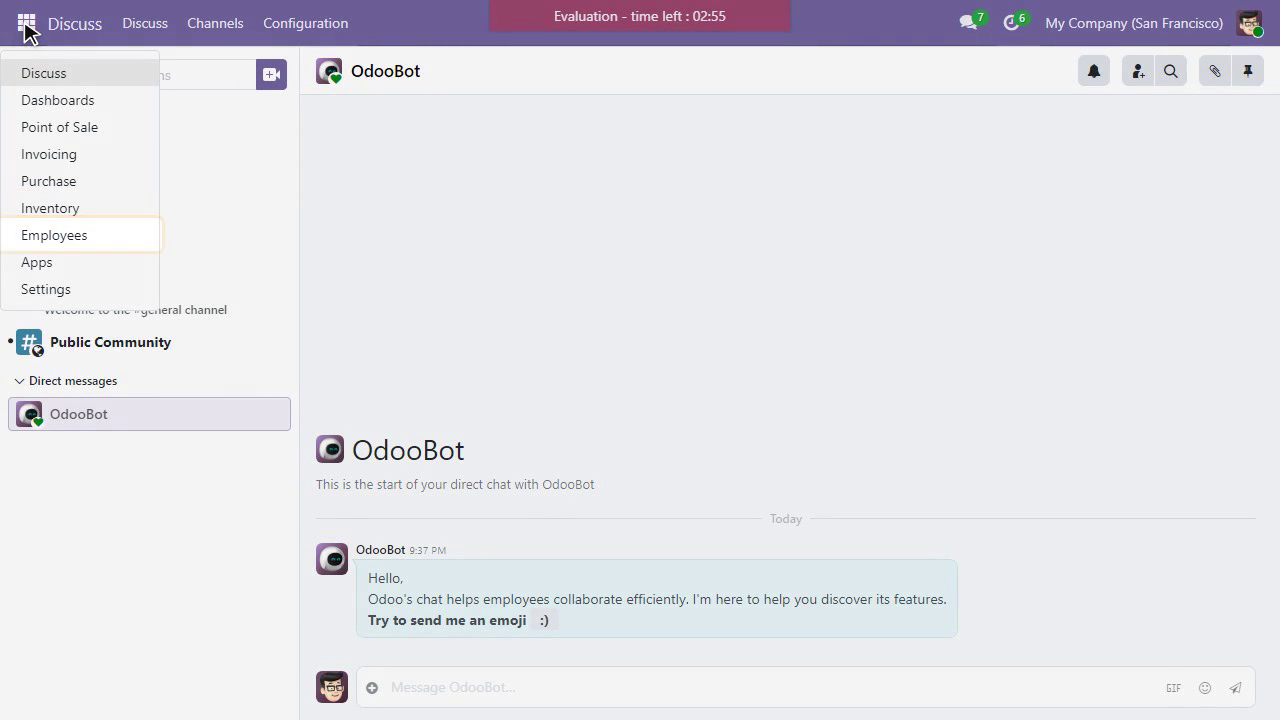
Click the menu button in the top left corner to see your apps. These are the apps chosen for your project - by Functionary AI if you used Help me design, or by you if you used I know what I want. Click an app to open it. Odoo adds a few of its own to every system: Discuss, Dashboards, Apps and Settings.
5. Try something: a sale at the till
The best way to learn your new Odoo is to use it. If your project has Point of Sale, try a sale:
- Open Point of Sale. Each card is a shop with its own till; the sample data has a few.
- Click Open Register on one of them. The till asks for the cash in the drawer: leave it at zero, and click Open Register.
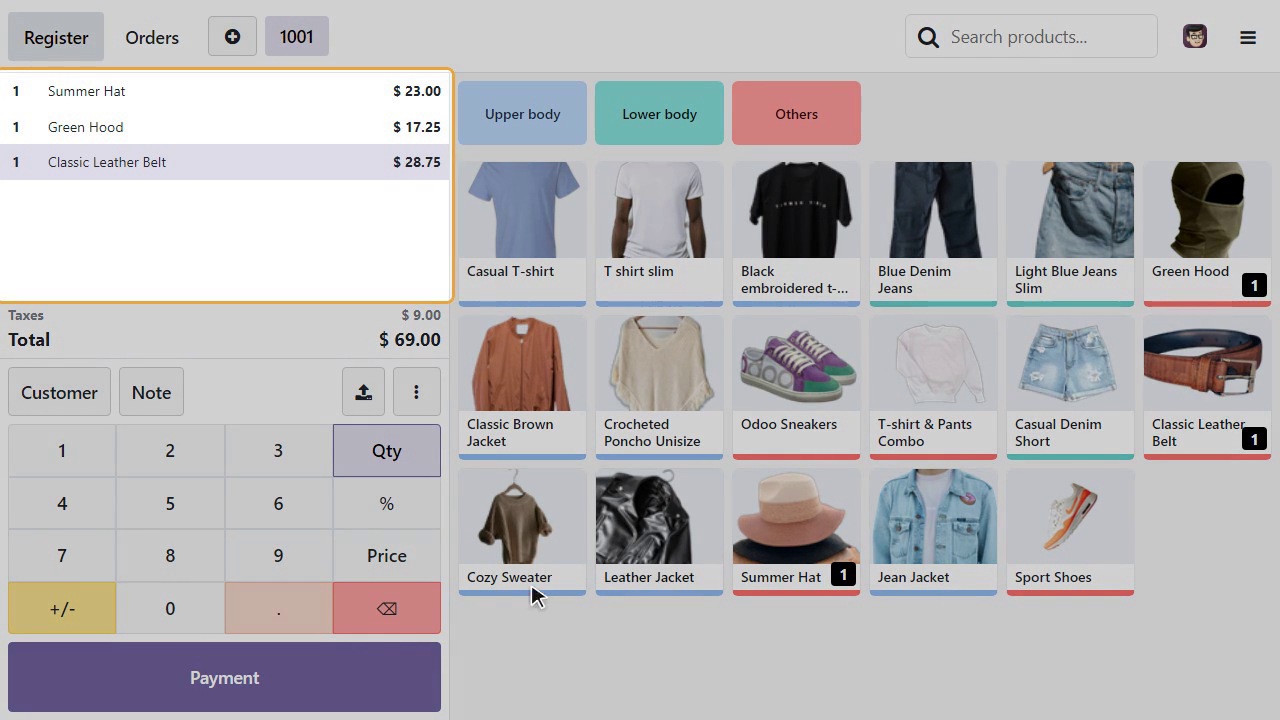
- Click a few products. They add up on the left.
- Click Payment, then Cash, then Validate.
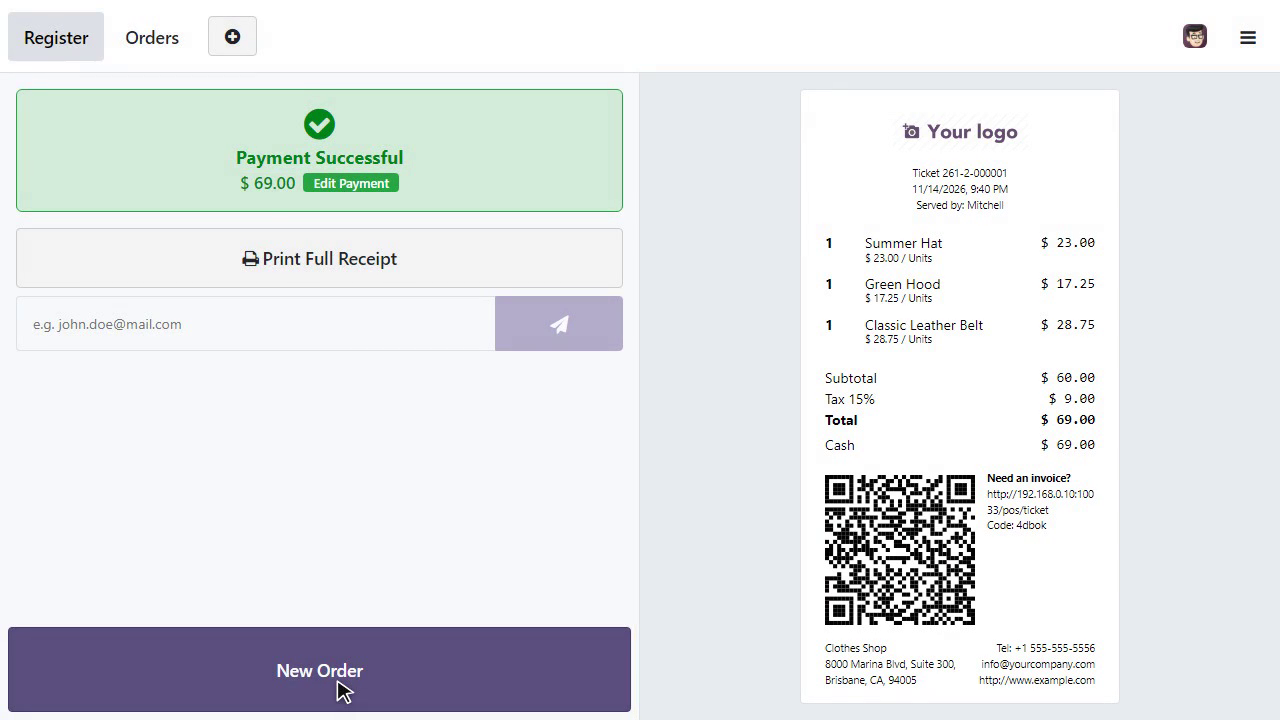
The sale is paid, with a receipt to print or email. To go back to the other apps, use the menu at the top right of the till.
Try the other apps the same way: add a product, order from a supplier, write an invoice. Nothing you do in your Try-It can break your real system, and your customers never see it.
6. Before you go live
Back on your project's page, I'm Happy - Go Live turns your project into your live system. Going live has an article of its own; one thing to know now:
- Your live Odoo is built from your project, not from your Try-It. Anything you typed or changed in the Try-It - sales, products, settings - is not carried over, and the Try-It is deleted when you go live.
When your Try-It runs out
When the three hours are up, your Try-It stops. Your project is not affected. Your project's page says Your try-it version has stopped, with a Start a Fresh Try-It button: it starts a new copy, with new sample data and three more hours. It takes a few minutes, and the page updates on its own.
Changing what's in your Odoo
To add an app, switch on a feature, or have something built for you, ask in the chat on your project's page, in your own words. Functionary AI checks first whether your Odoo can already do it, and builds what it can't.